Working with compositions
This chapter describes how to create a composition, create its first version, add new versions and manage composition settings.
Creating composition
Go to the Compositions tab in the sidebar (see Compositions). An empty list of compositions is displayed.
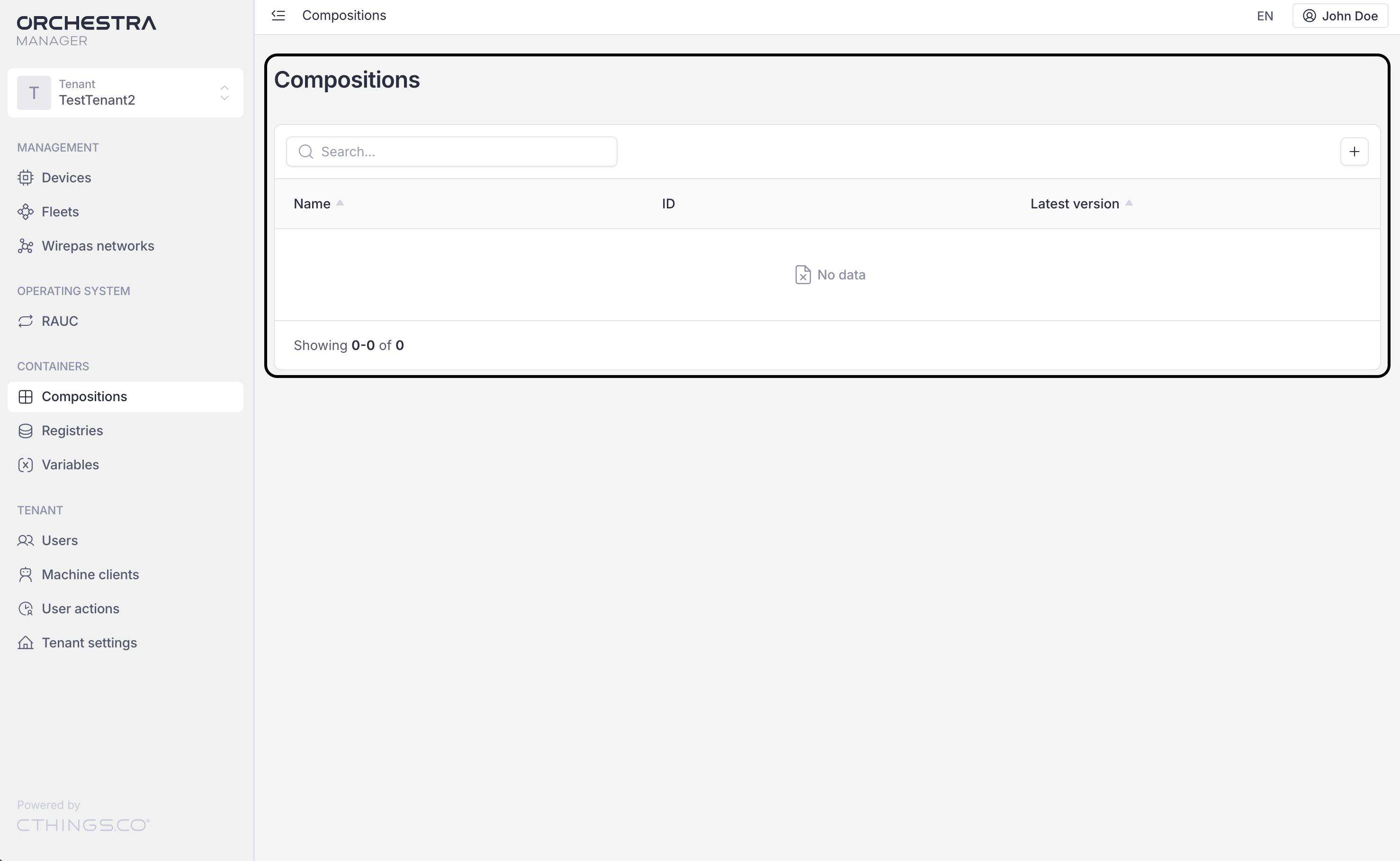
Click the "+" button in the top right corner. Enter a name for the composition, for example, “Test Composition”.
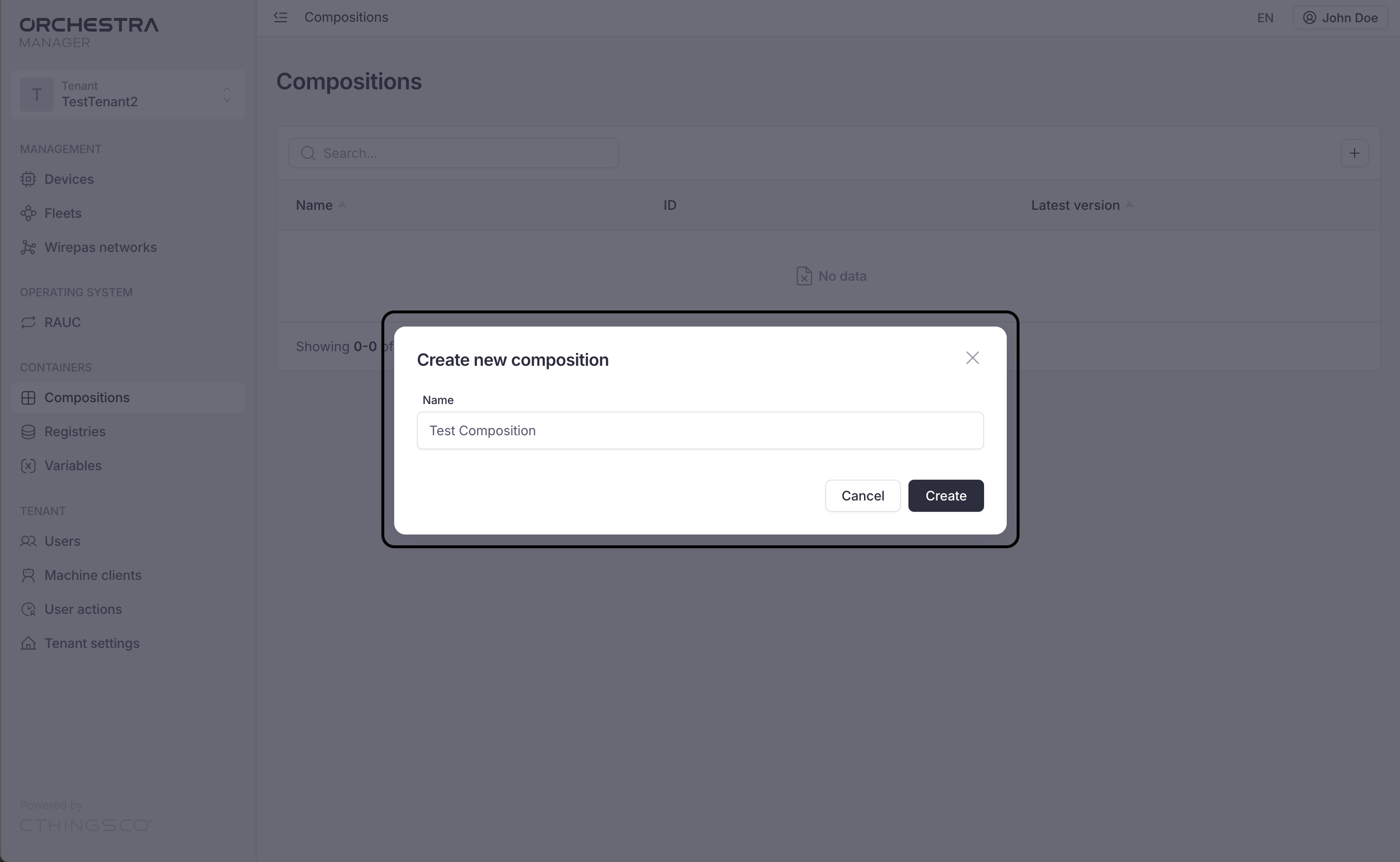
Press Create. The newly created composition opens automatically.
Versioning
A new composition contains no versions; only the Create first version button is available. The examples in this chapter use a “Hello World” application.
Creating version
Press Create first version and enter a version number.
Important
Use semantic versioning in the X.Y.Z format, where X is the major version, Y is the minor version and Z is the patch version. This improves the readability and maintainability of the composition.
Optionally, enter a description of the version. A description is recommended. Then add the application file (the .yml file downloaded earlier): drag and drop it, or click Choose file and select it on your computer.
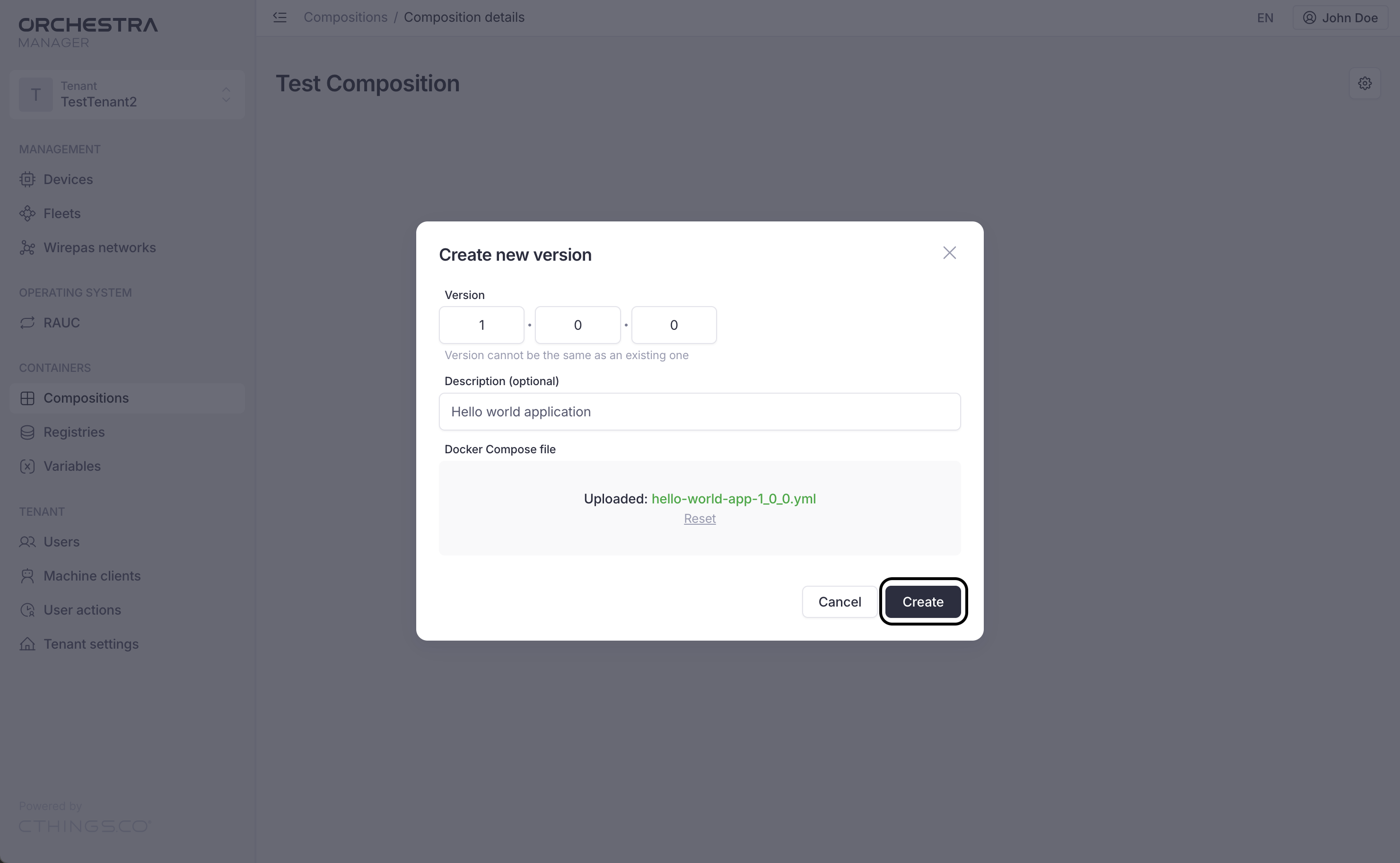
Press Create. The first version of the composition is created.
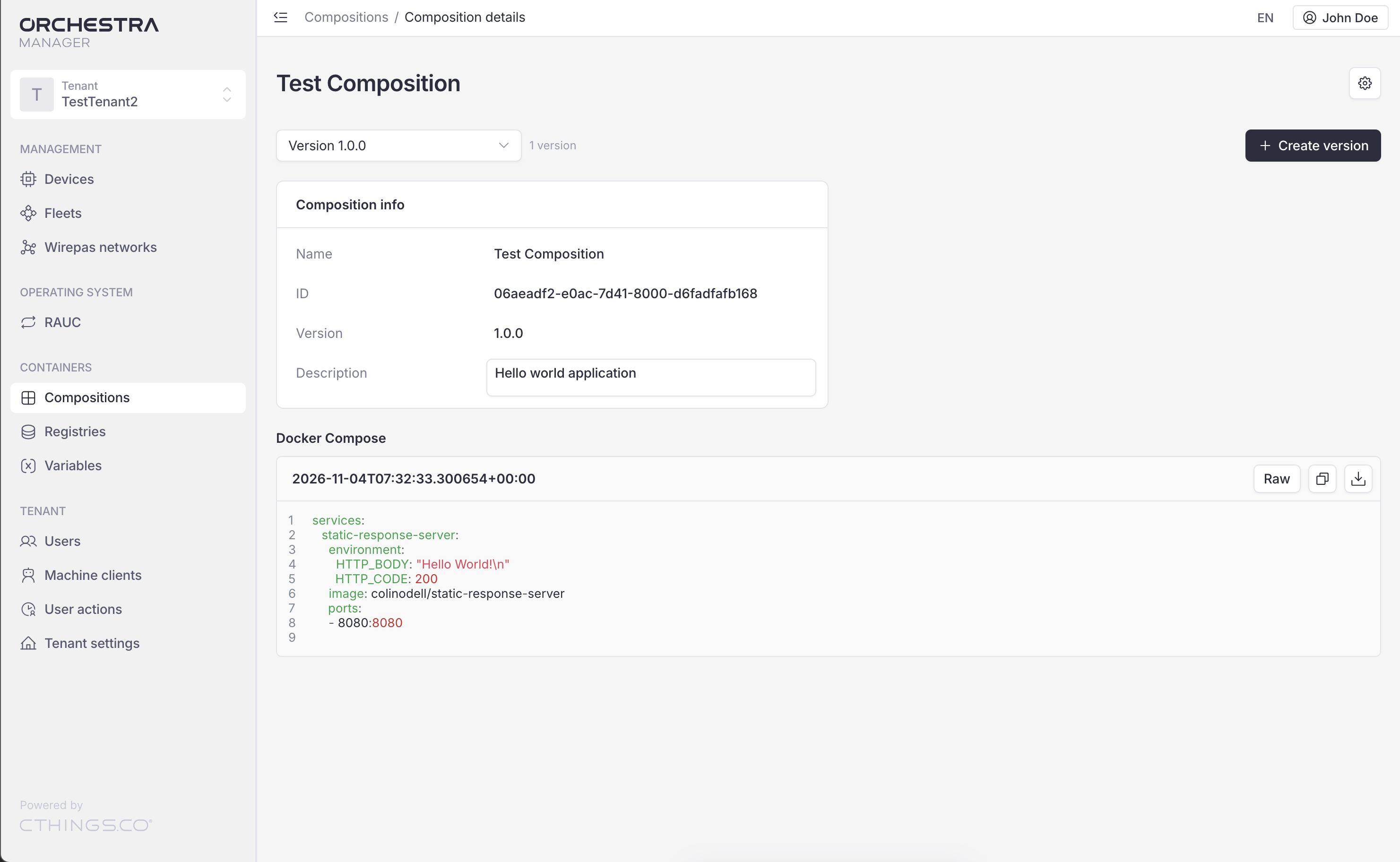
Adding a version
Adding a version requires a new version of the application. Download it here: Hello World App 1.0.1
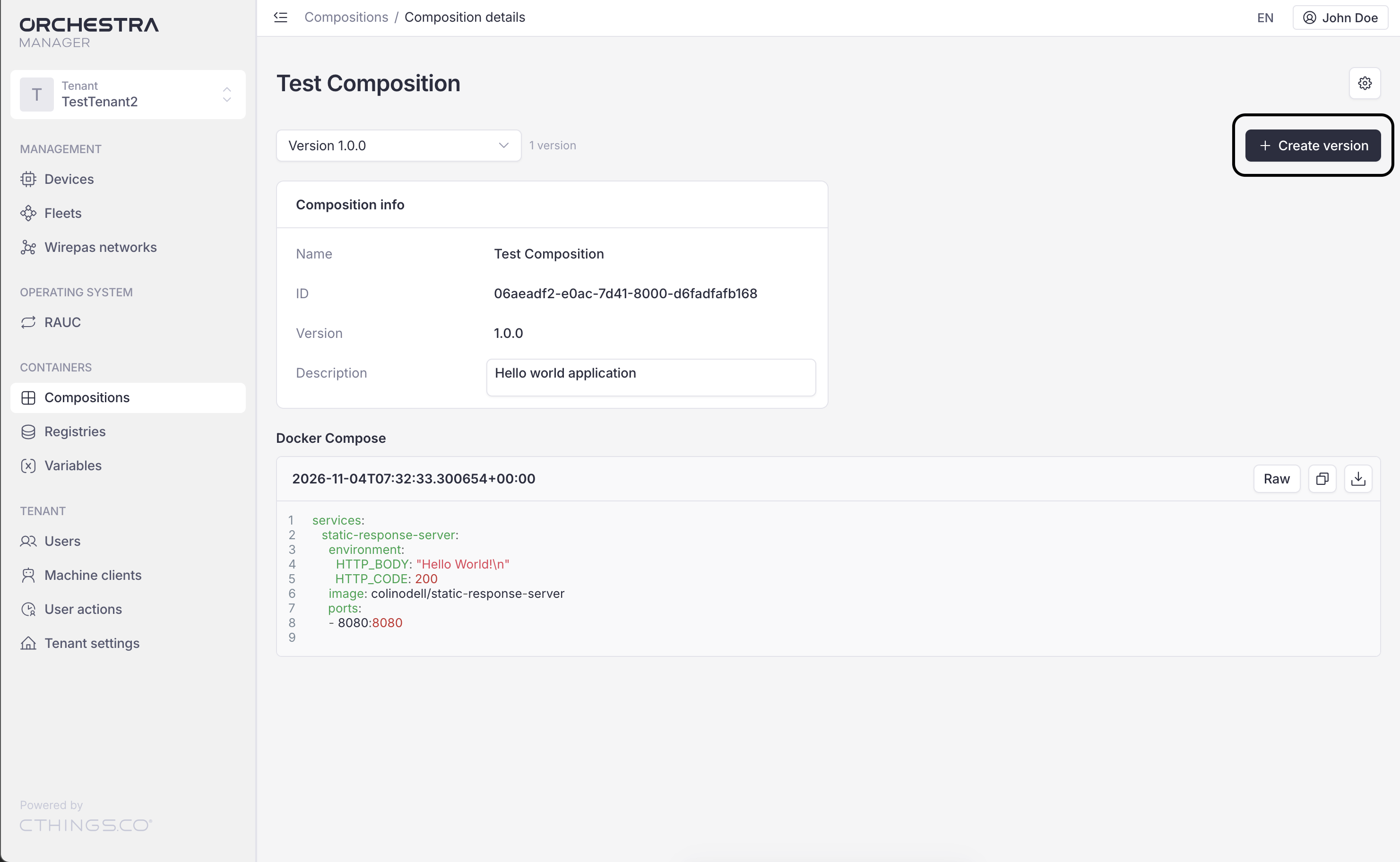
Click the Create version button in the top right corner.
The version creation pop-up opens. Follow the same steps as for the first version.
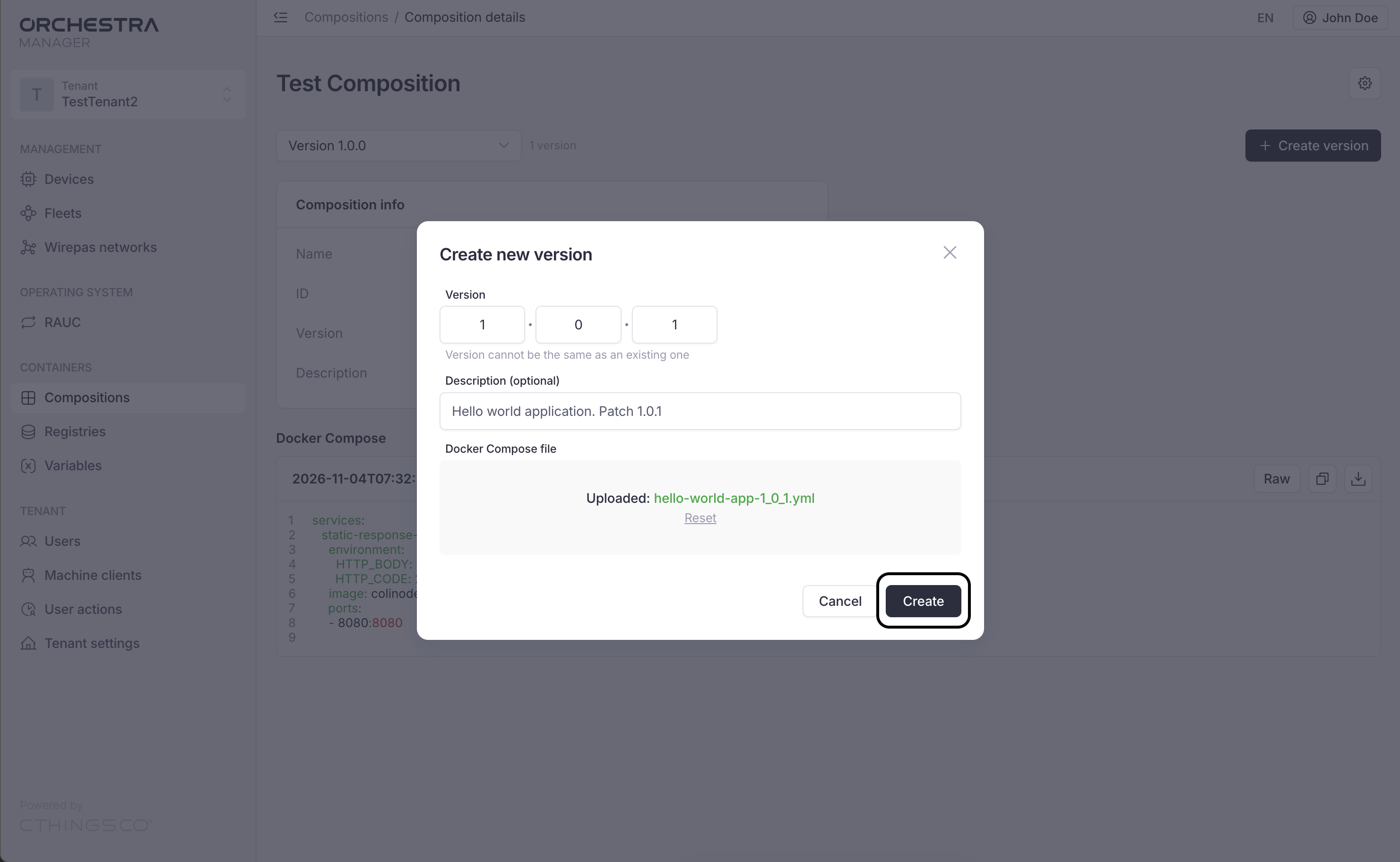
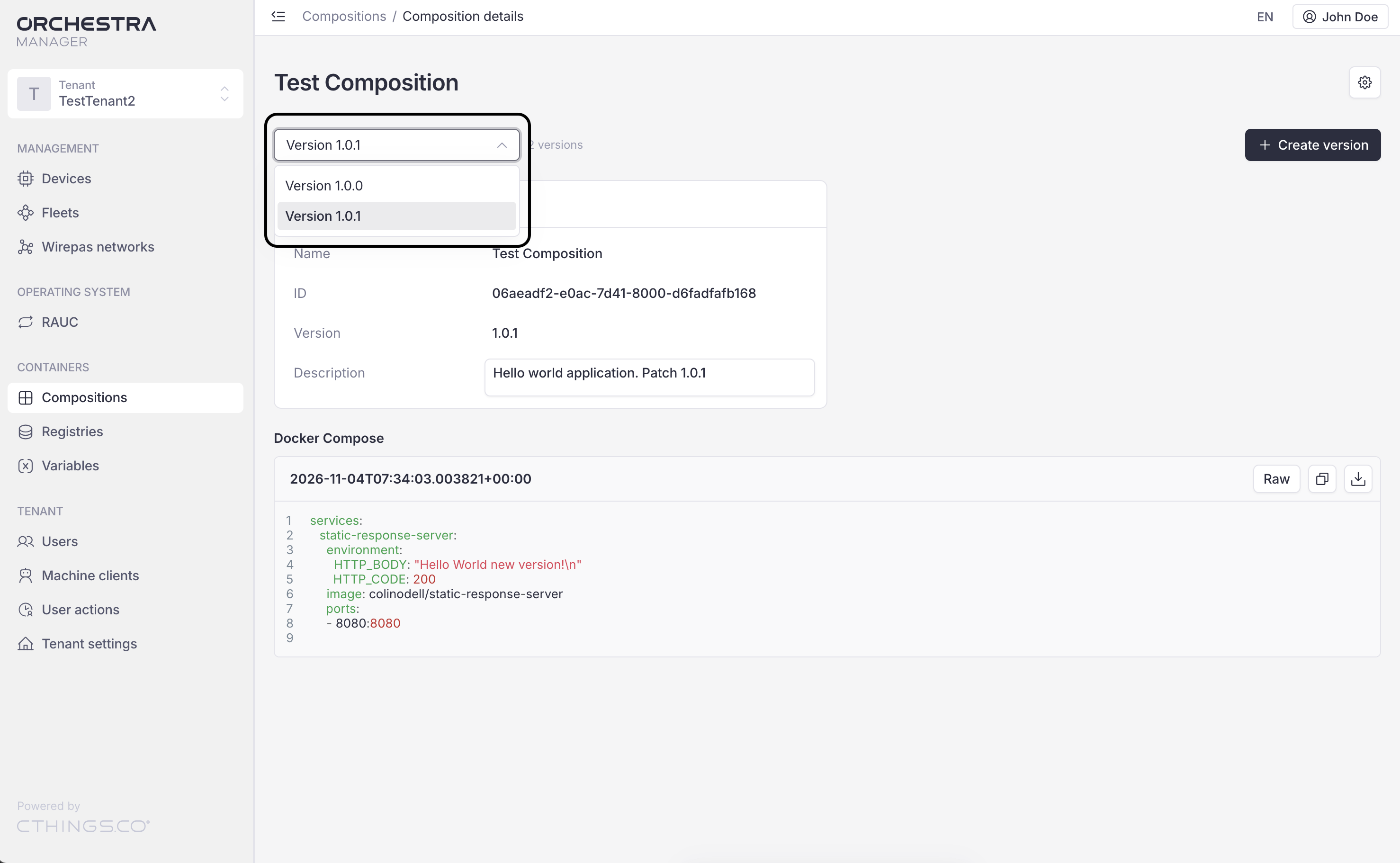
Click Create. The new version appears in the version dropdown list.
Composition settings
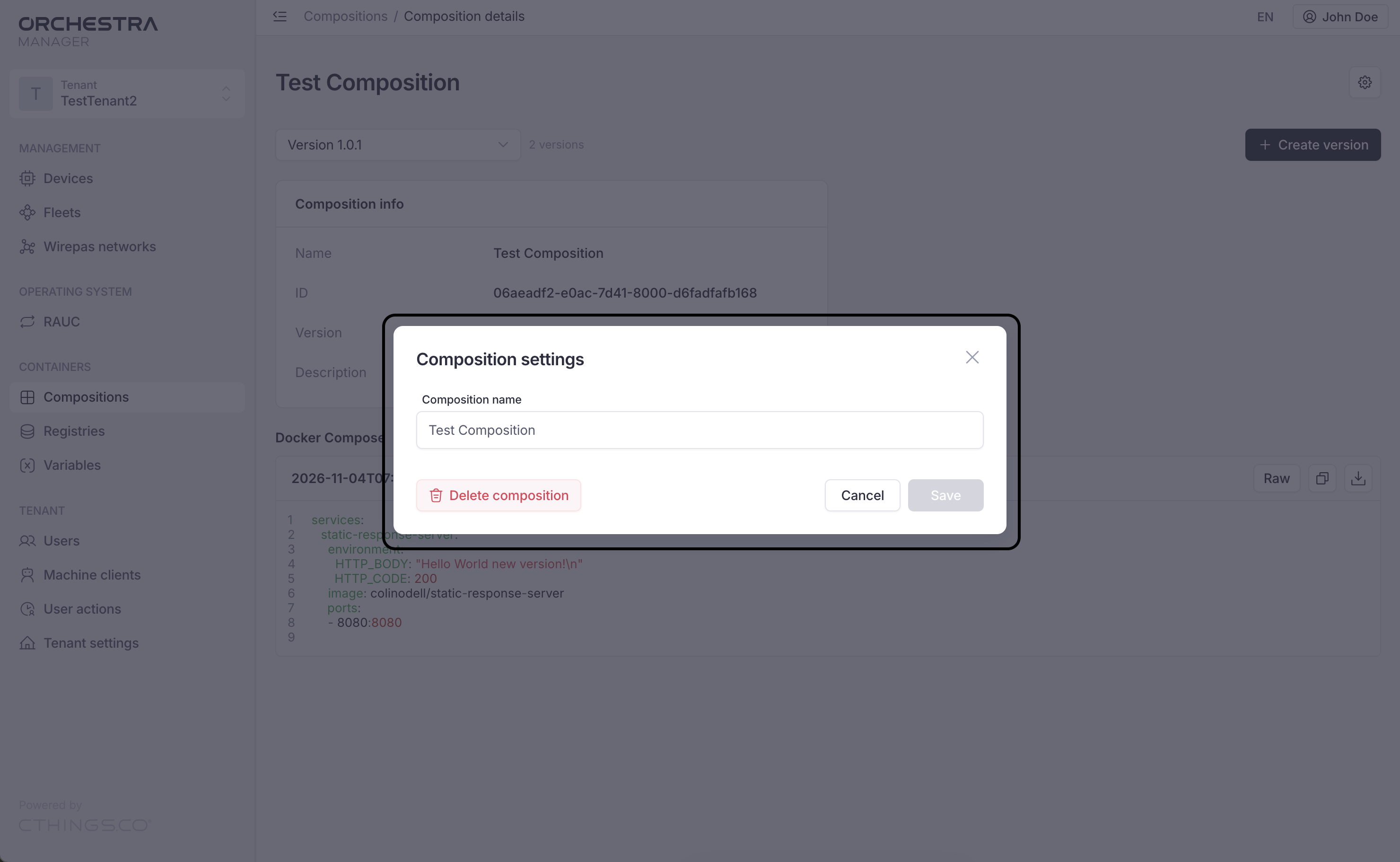
After clicking on the gear wheel icon in the top right corner, the pop-up will appear. Here the composition can be either renamed or deleted.
Warning
Deleting a composition cannot be undone.