Variables
This chapter describes variables in Orchestra Manager and how to use them.
What a variable is
Variables in Orchestra Manager store settings and parameters for devices, compositions and fleets. They work like variables in programming: each one holds a value under a name. Variables exist on three levels: Global, Fleet and Device. Each level overrides the level above it.
How variables override each other
Variables follow one rule: the most specific level takes precedence. Orchestra Manager checks three levels, from the broadest to the most specific: Global → Fleet → Device.
Example: the UPDATE variable defines how often devices send updates.
Level |
Value |
Devices that receive this value |
|---|---|---|
Global |
|
All devices not covered by another level |
Fleet |
|
Devices in this fleet, except the specific device |
Device |
|
Only the specific device |
Variables in .yml |
|
Cannot be overridden, because the value is defined in the .yml application file |
Important
A variable that is defined and assigned a value in the .yml file cannot be overridden. Only references in the ${VARIABLE} format can be overridden.
Each level overrides the one above it. As a result, the specific device reports every hour, even though the Global value is 24 hours.
Creating a Global variable
Note
For instructions on creating variables on other levels, see the Fleet and Device chapters.
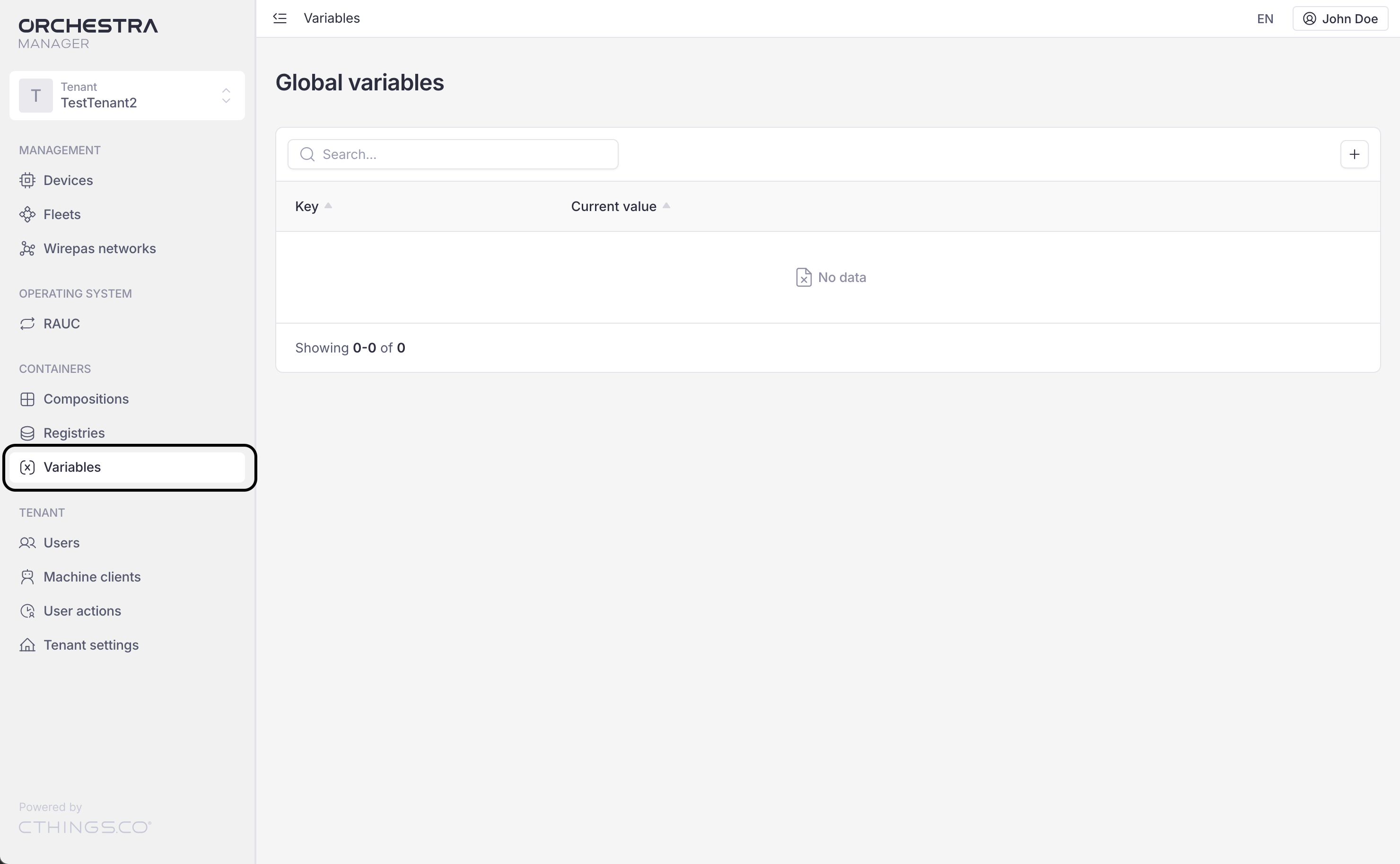
To create a variable, go to the Variables tab in the sidebar.
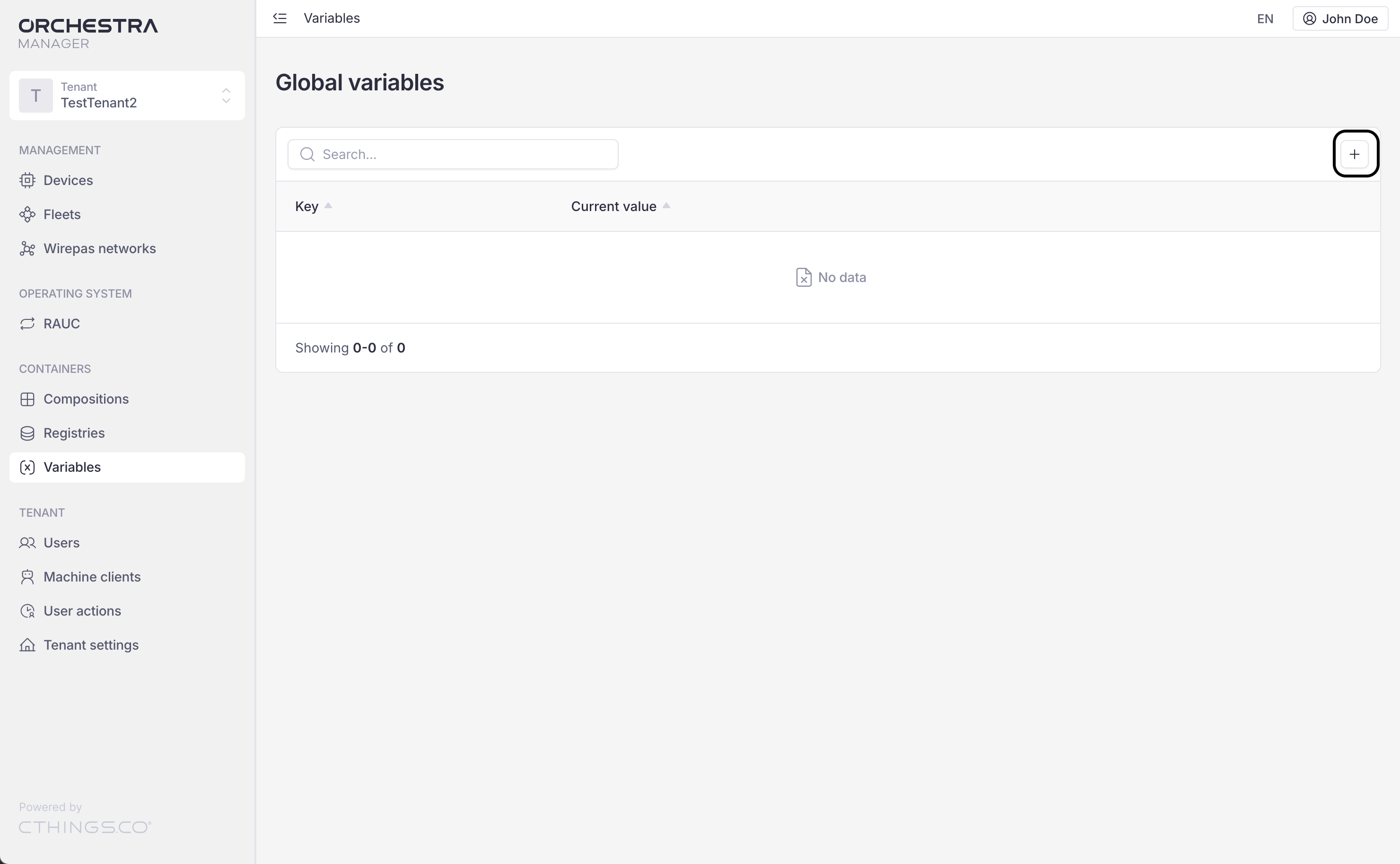
Click the "+" button on the Variables page.
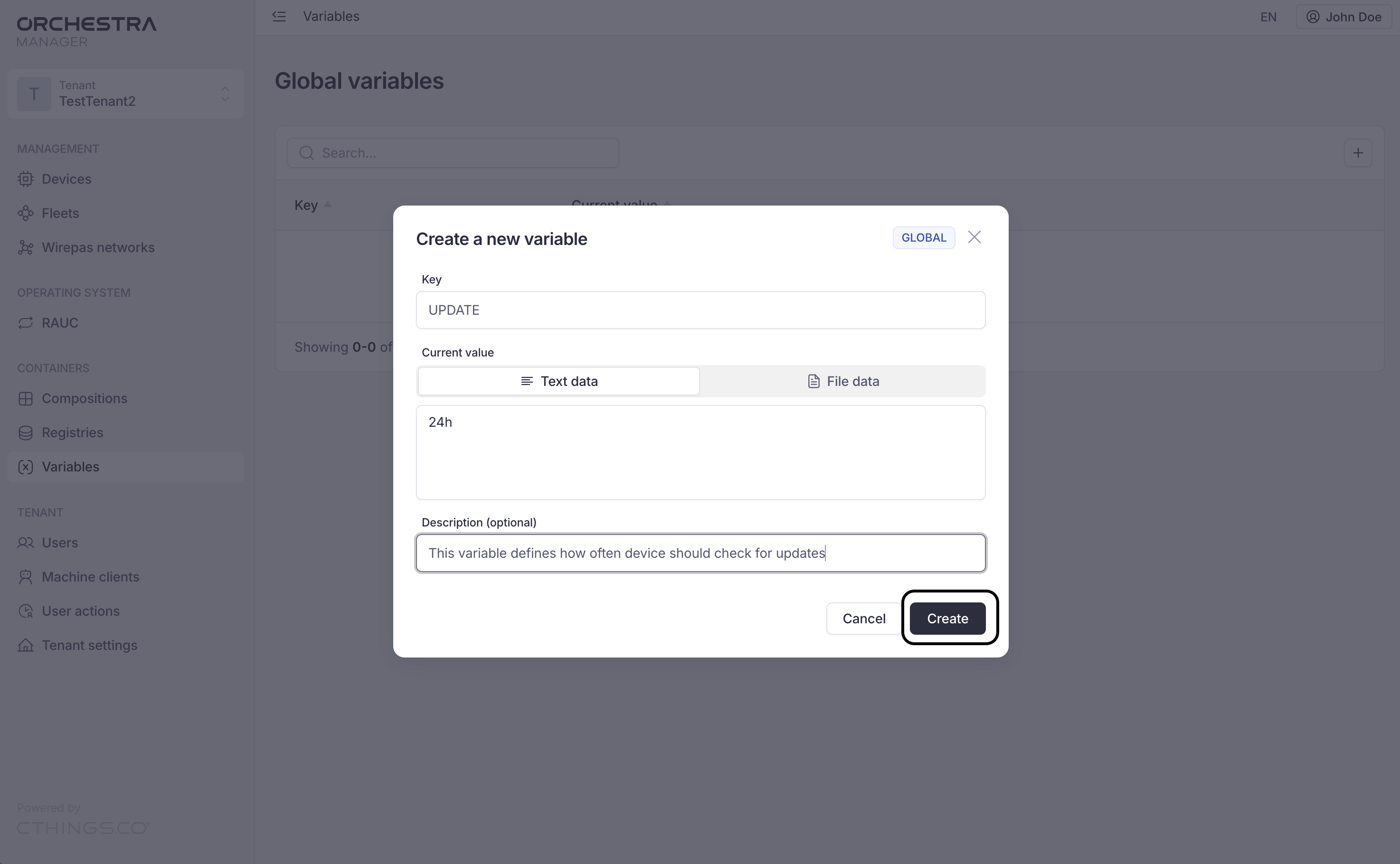
Specify the variable’s key, select the value type (text or file) and provide the value. Then add a description.
Note
The description is optional, but a clear description is recommended for each variable.
The following figure shows an example of a new variable:
Changing and deleting a variable
To change or delete a variable, click it in the list of variables. The following pop-up opens:
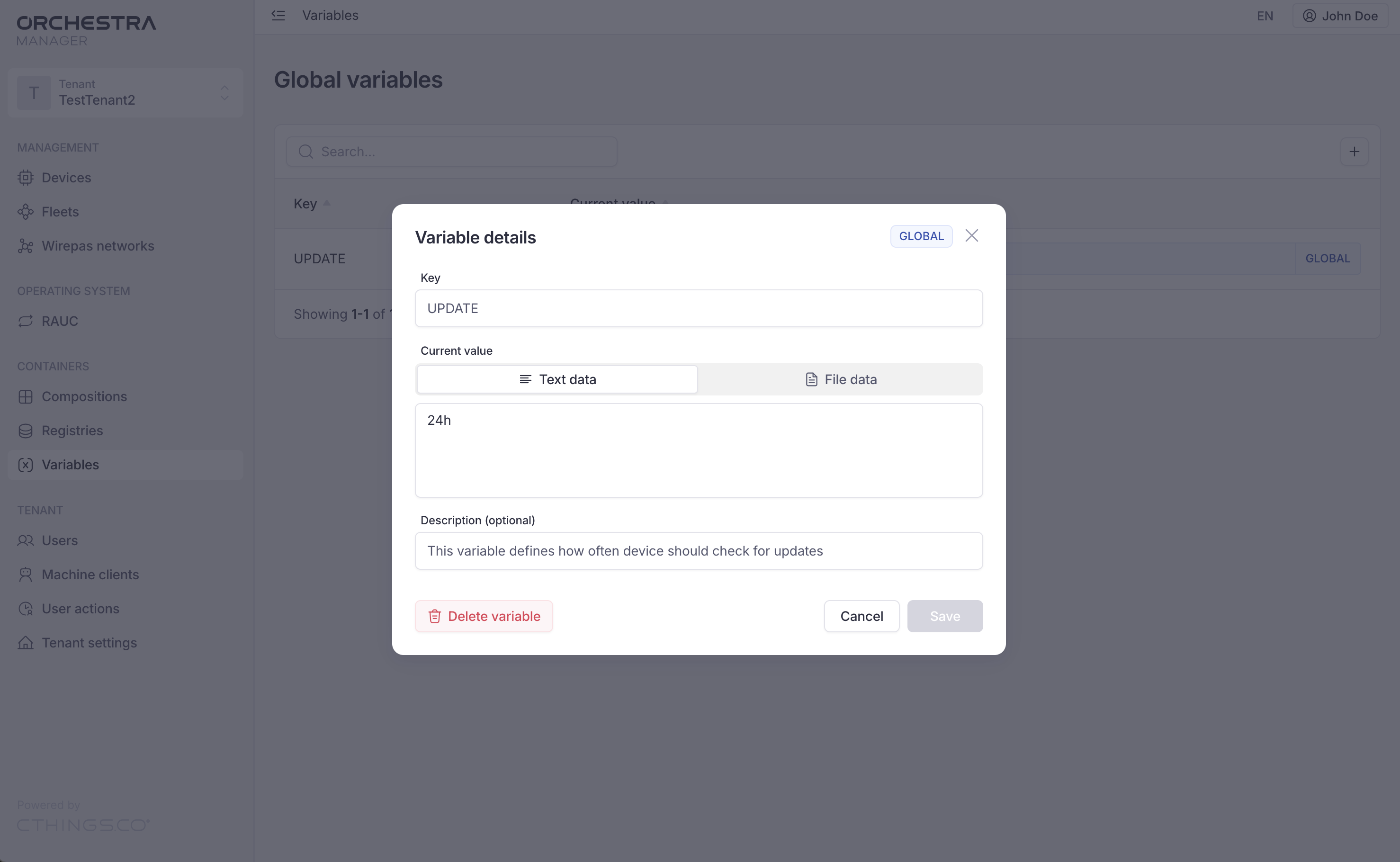
To delete the variable, click Delete variable.
To change the key, value or description, edit the corresponding fields and press Save.
Note
A new variable value reaches devices only after the release is restarted.