Releases
This chapter describes how to create, deploy and check releases.
Concept
A release is the process of deploying a composition’s application to the fleet’s devices. A release contains a snapshot of each device’s variables (including Global, Fleet and Device variables) and the version of the composition.
Creating the first release
Go to the Compositions tab. Choose the composition you want to release. There are buttons that allow you to make a release (see the following screenshot).:
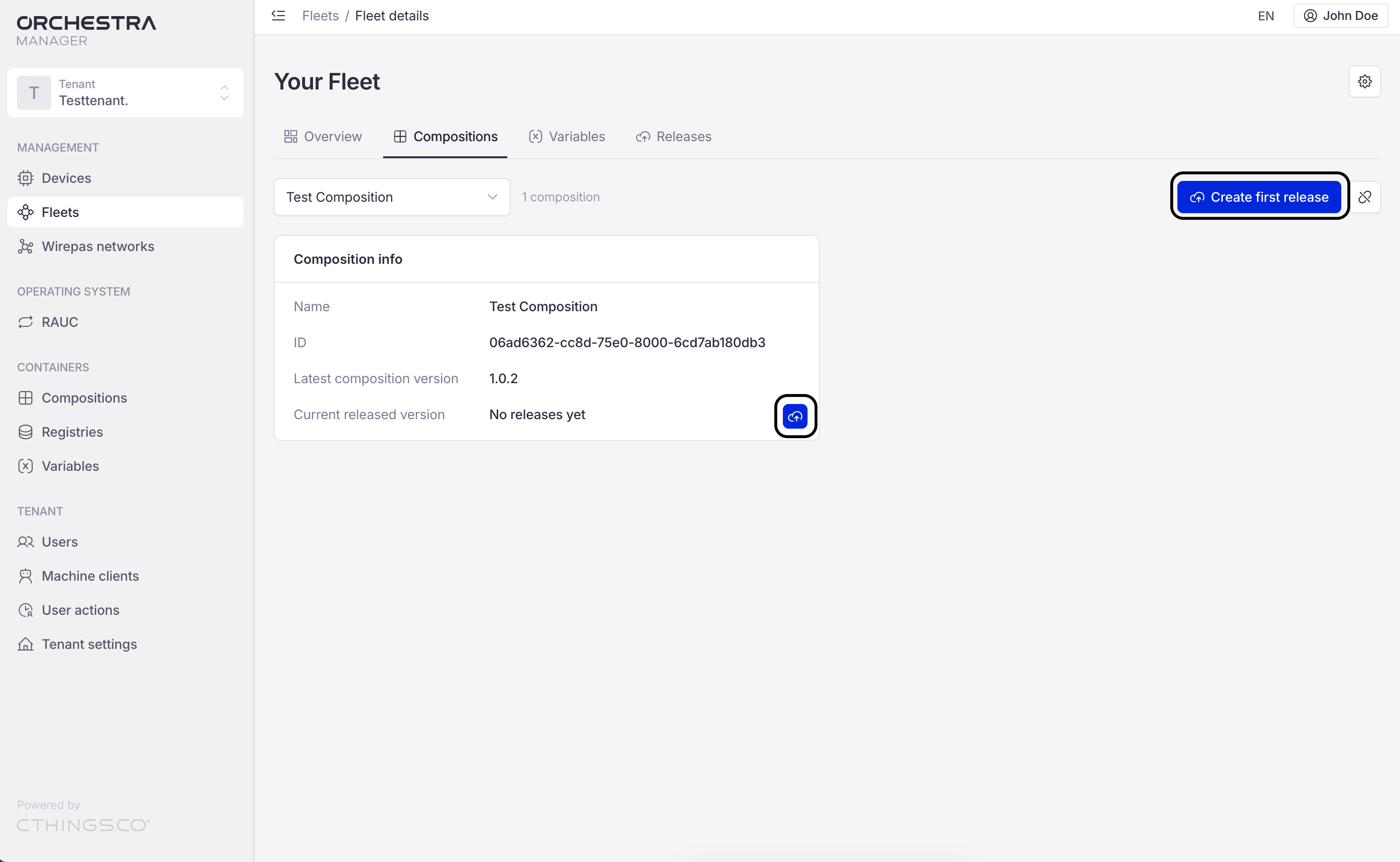
Press one of those buttons to proceed. You will be prompted to specify the version of the composition you want to deploy with this release.
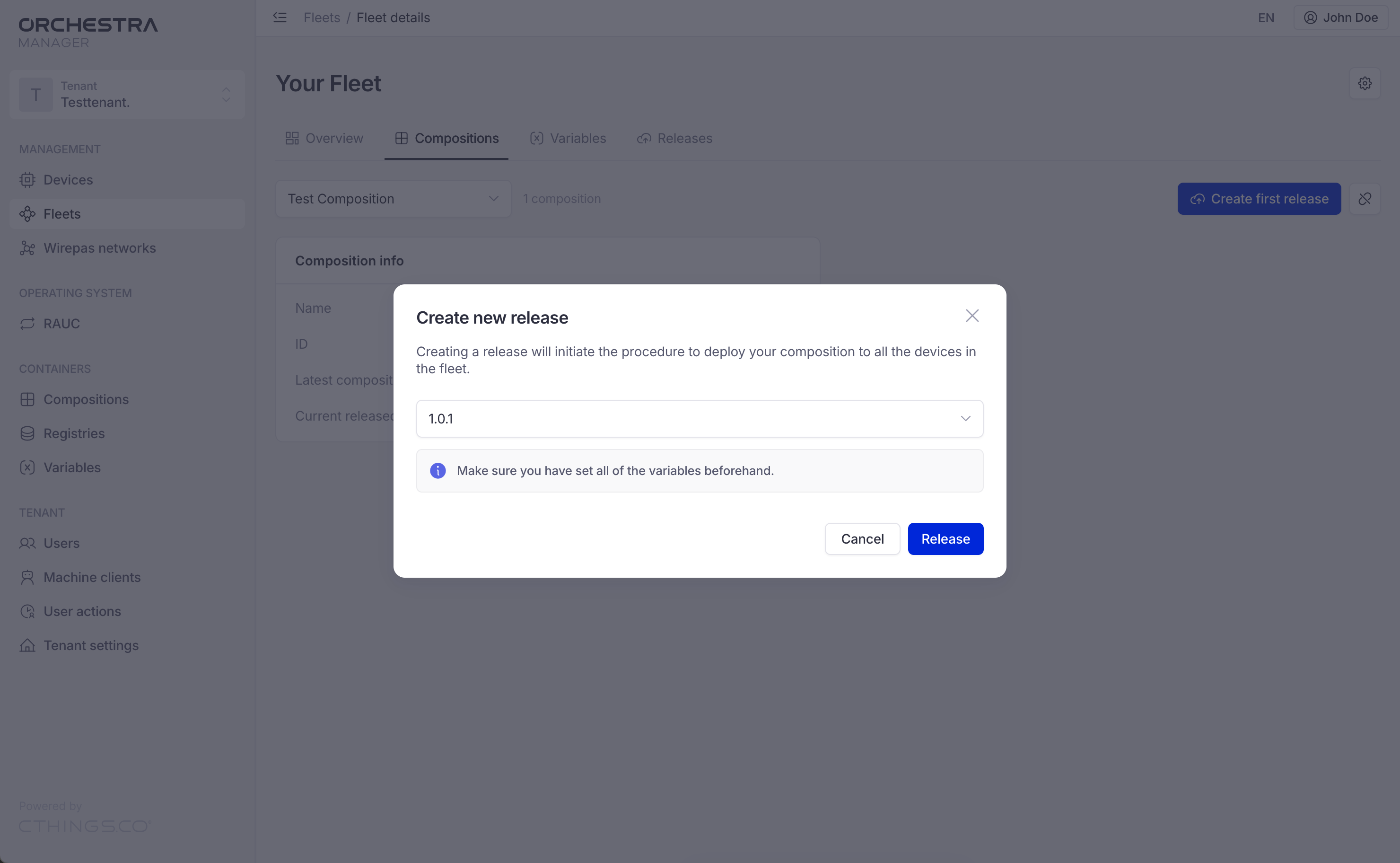
After you have chosen the version you are going to deploy, press the Release button, and the release will start. Deploying and running a release may take from a few seconds to several minutes. The time it takes depends on the specifications of your devices and the complexity of your compositions.
Note
The release version is the same as the version of the composition deployed with the release.
Checking release status
It is possible to check the release status of each device separately, and there are dashboards that help you understand how many devices succeeded, how many failed and how many are still pending.
The following figures show the dashboards at different stages of the release:
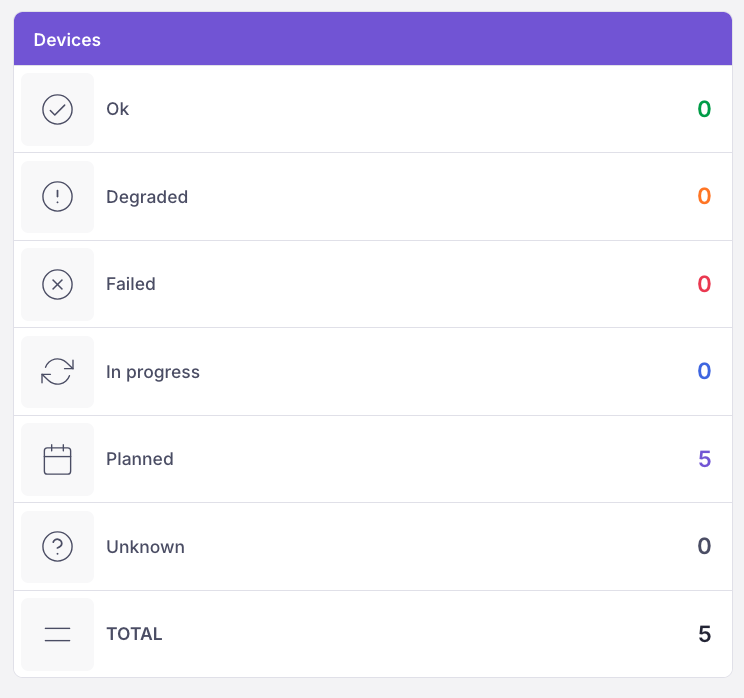
The release has just started
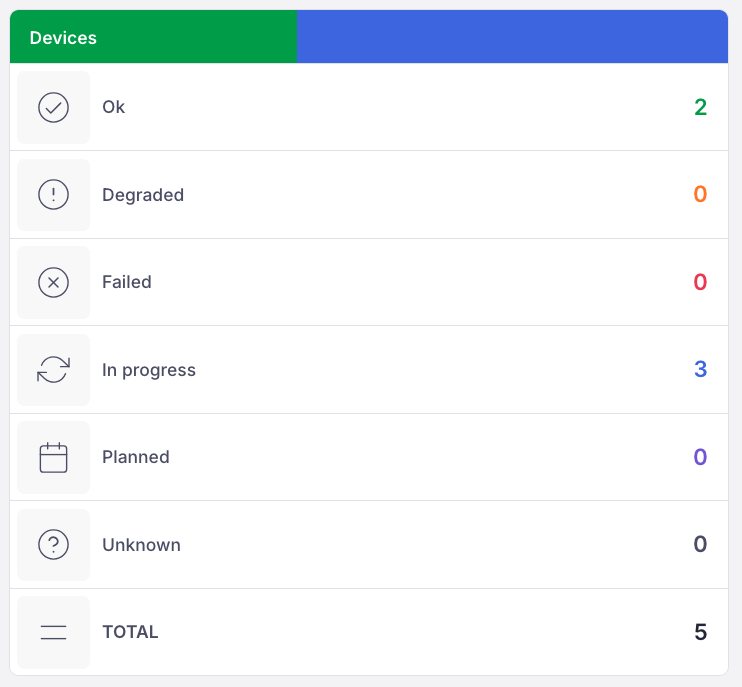
2 devices are already done; 3 are still in progress
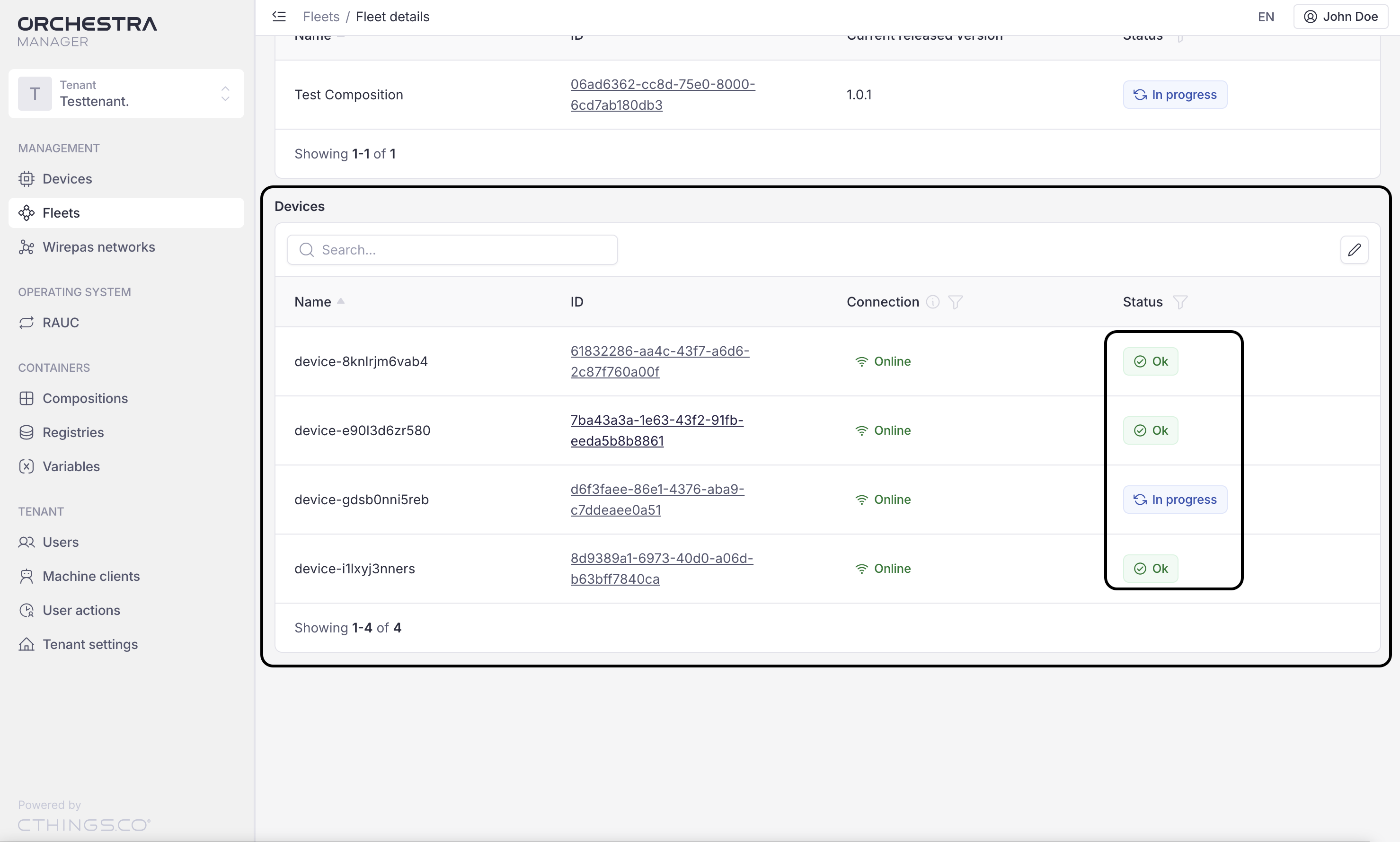
Devices section on the Overview page. You can see each device’s status separately.
These dashboards can help you identify how many devices had problems starting the release and how long it takes to push and run the release on all of your devices. The dashboard will also show you how many devices are still running an outdated version of the release in the Degraded row.
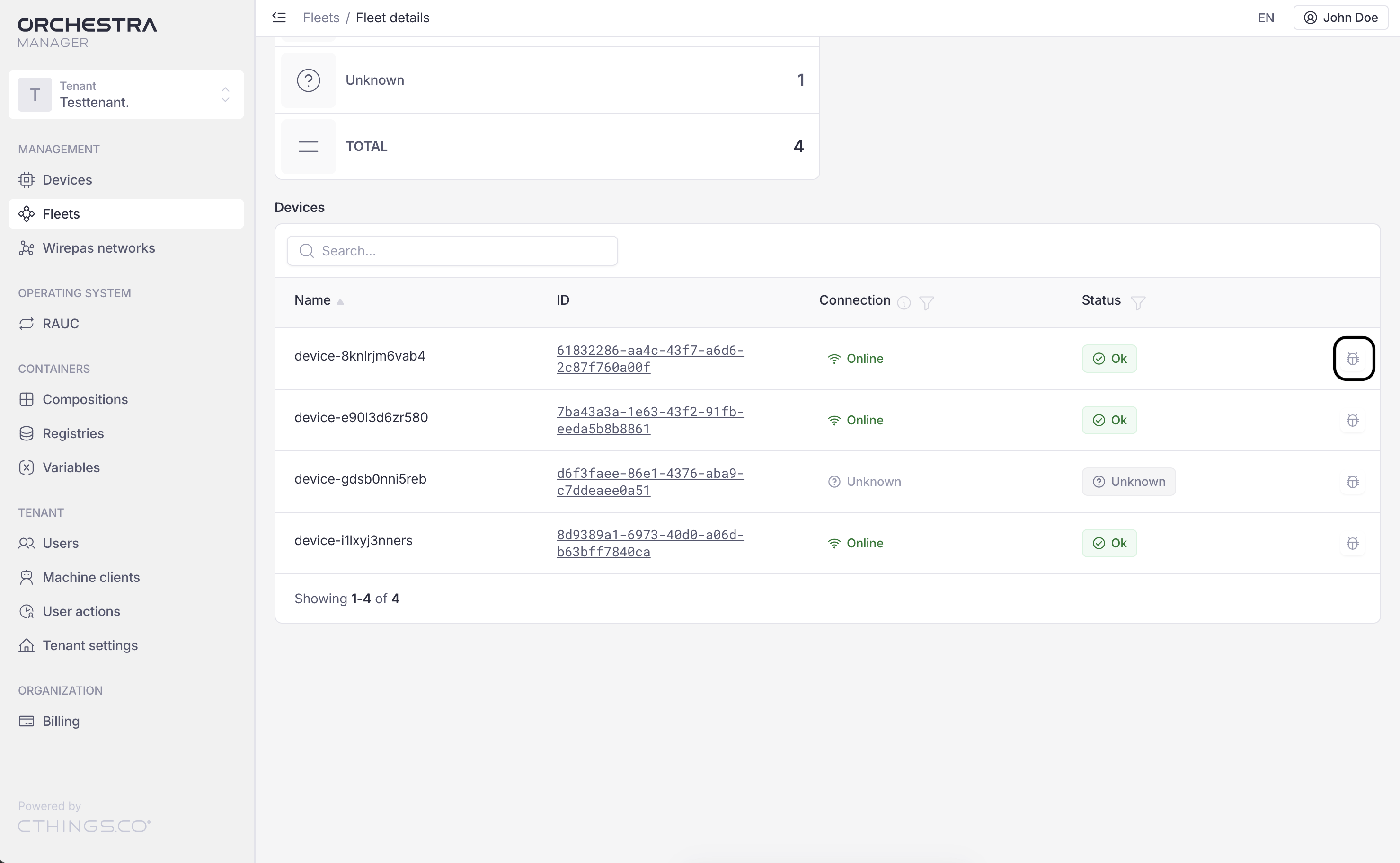
You can check how the application is working using the device terminal, see TERMINAL, and cheking devices logs.
To check devices logs, go to the Compositions tab, choose the composition you want to check and scroll down to the Devices section. Press the Debugging button next to the device you want to check.
Redeploying the release
You can redeploy your release by pressing the Restart button in the Compositions tab.
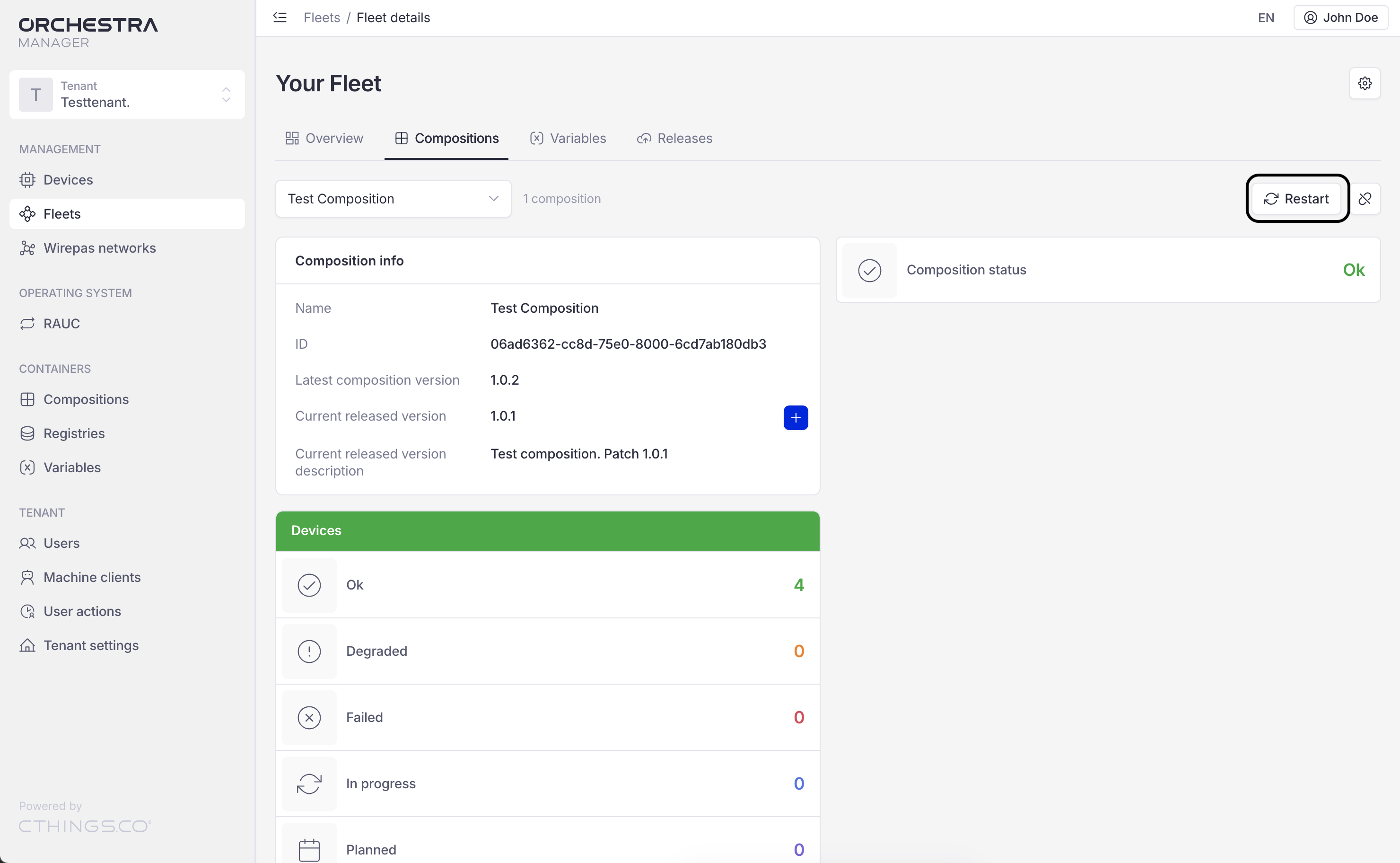
After you press the button, a new release will run on all of the fleet’s devices.
Changing the current release version
With Orchestra Manager’s fleets, you can deploy new versions to your devices when a new version is available. You can also roll back to a previous version when needed. To change the current release version, press the "+" button on the Compositions tab, next to Current released version.
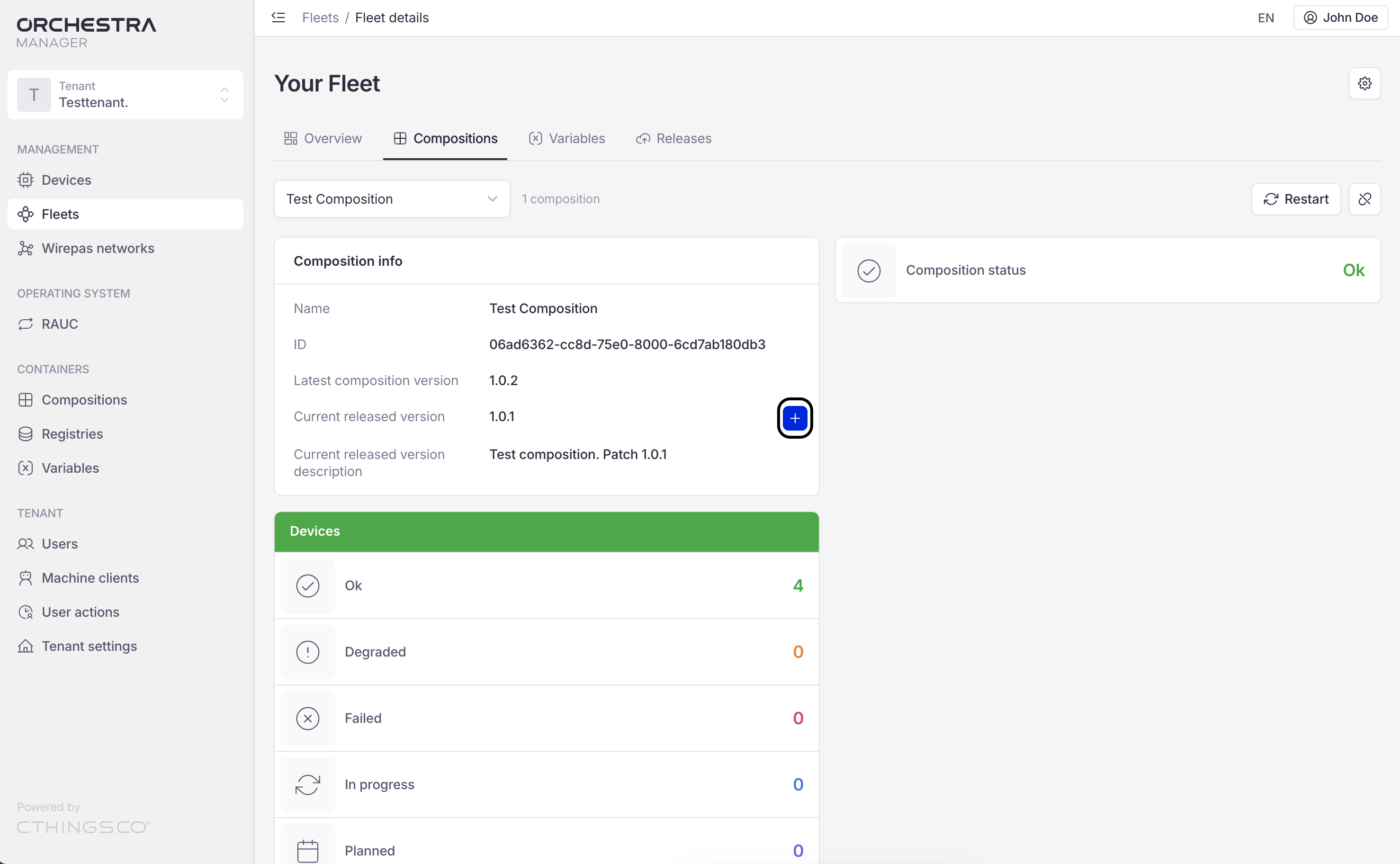
After that, choose the version of the composition you want to release. Press Release and your new release will be deployed.