Overview page
This chapter describes what is available on the Overview page in the Fleets section. It covers fleet info, fleet status, dashboards, managing compositions and managing devices in a fleet.
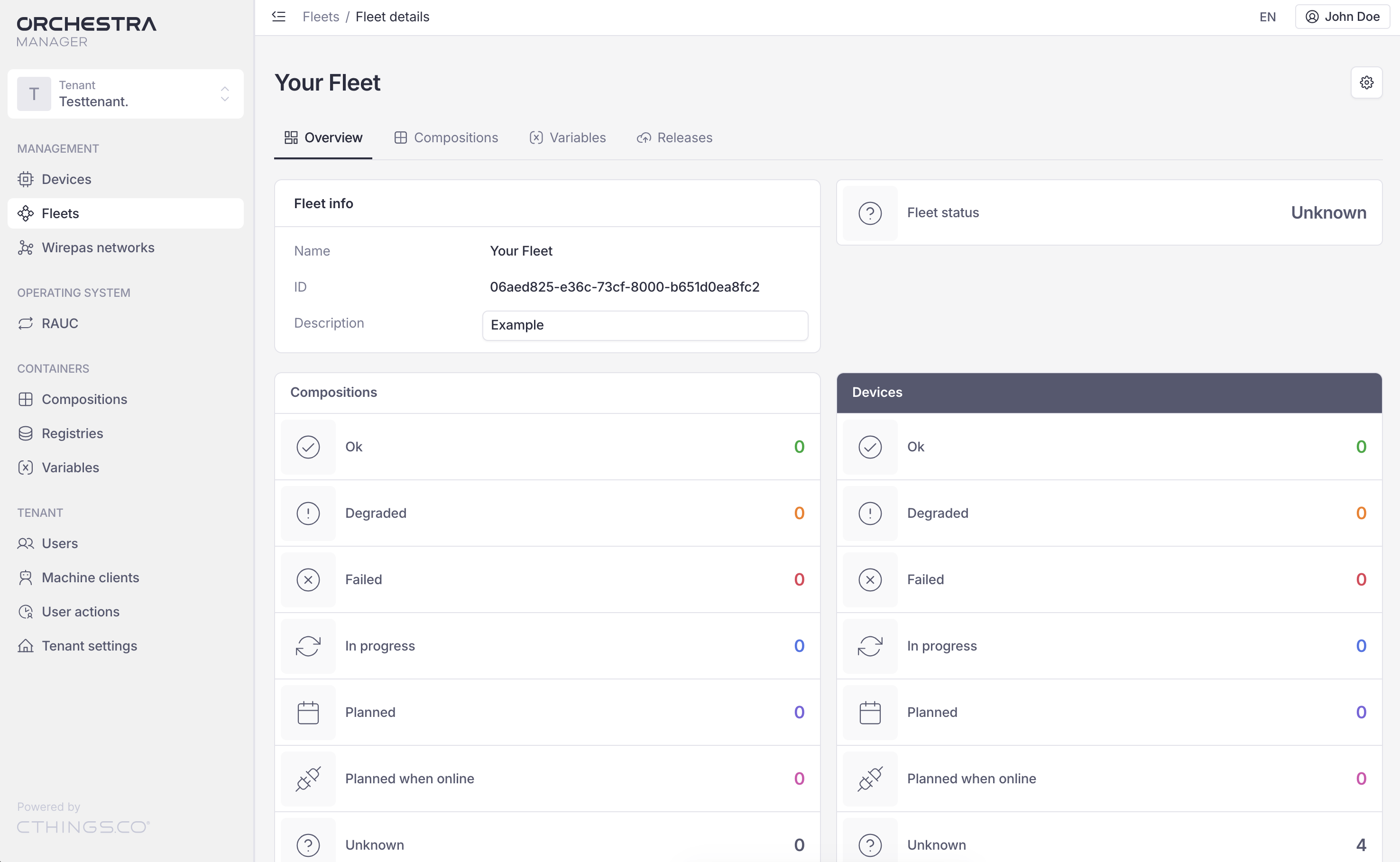
Overview page
Fleet info
Fleet info contains general information about your fleet, such as its name, unique ID and description. In this section, you can change the fleet’s description. Start typing a new description and a pop-up will appear at the bottom of the page. Once you have finished, press the Save button to save the new description.
Fleet status
This section shows the fleet’s current status. There are several statuses that can appear there:
Ok - all devices successfully started to run the latest release
Degraded - some/all devices are still running an old release
Failed - some/all devices failed to run a new release
In Progress - a new release is being deployed to some/all devices
Planned - a new release is planned to be deployed to some/all devices
Planned when online - a new release will be deployed to some/all devices when they come online
Unknown - there is no information about any recent release on some/all devices
Dashboards
There are two dashboards: Compositions and Devices. They show all statuses and how many items (devices or compositions) are under each status. This helps you understand the current deployment state of the latest release, for example, how many devices in the fleet still need to be updated or how many updates failed.
Compositions
You can see the status of your compositions and add new ones directly from the Overview page.
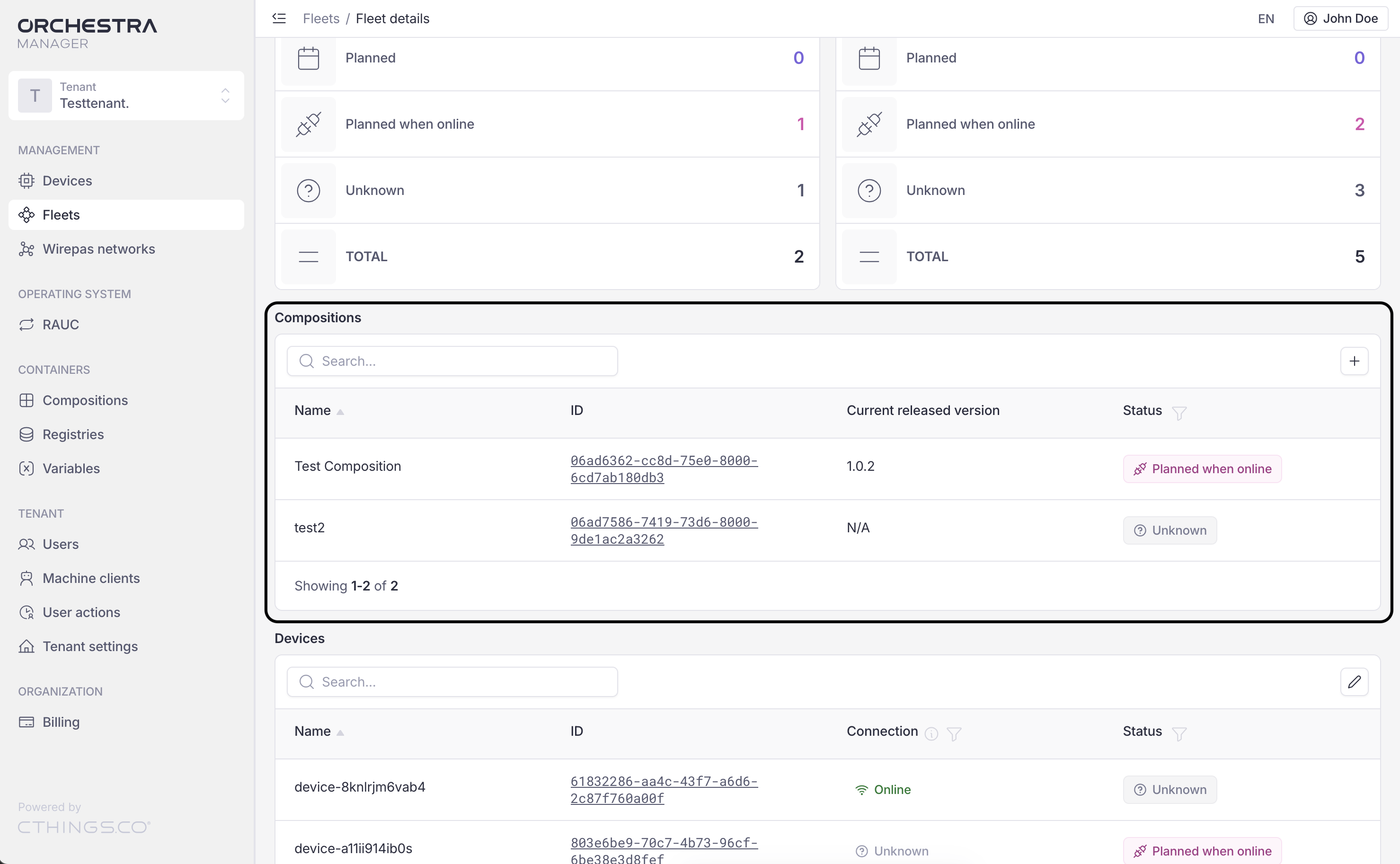
By pressing the "+" button in the top right corner of the section, you can add a new composition
Under Status, you can see the current status of the composition’s latest release
By clicking a specific composition’s ID, you can access the composition page, where you can manage it
Devices
You can also manage fleet devices directly from the Overview page:
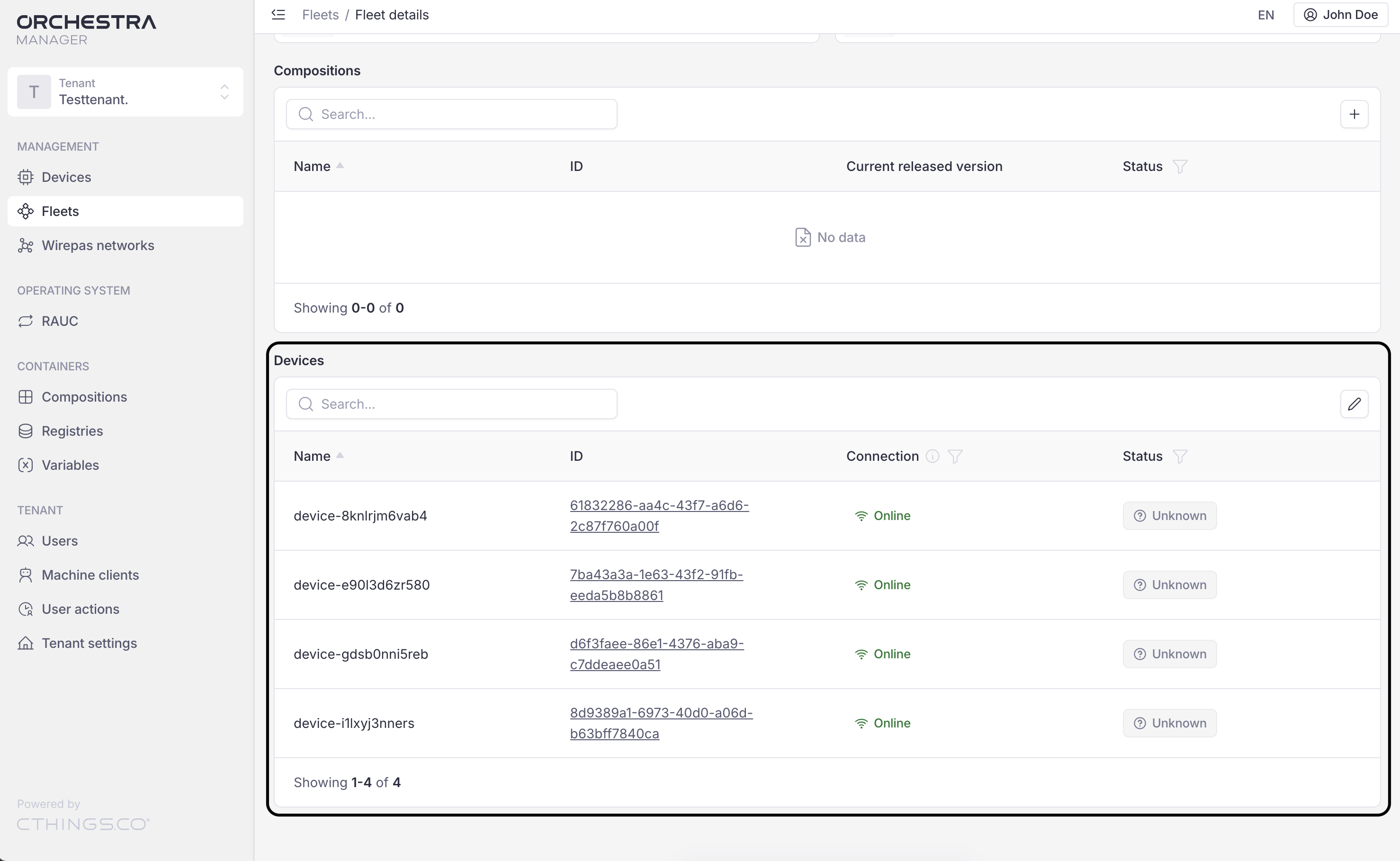
Here you can:
See the Status of the latest release on each device
See the Connection status of each device
Click on the ID of a specific device in order to manage that device
Press the Edit button in the top right corner in order to attach new devices to the fleet or detach them
If you want to attach devices to your fleet or detach them from it, press the Edit button in the top right corner of the section. The following pop-up will appear:
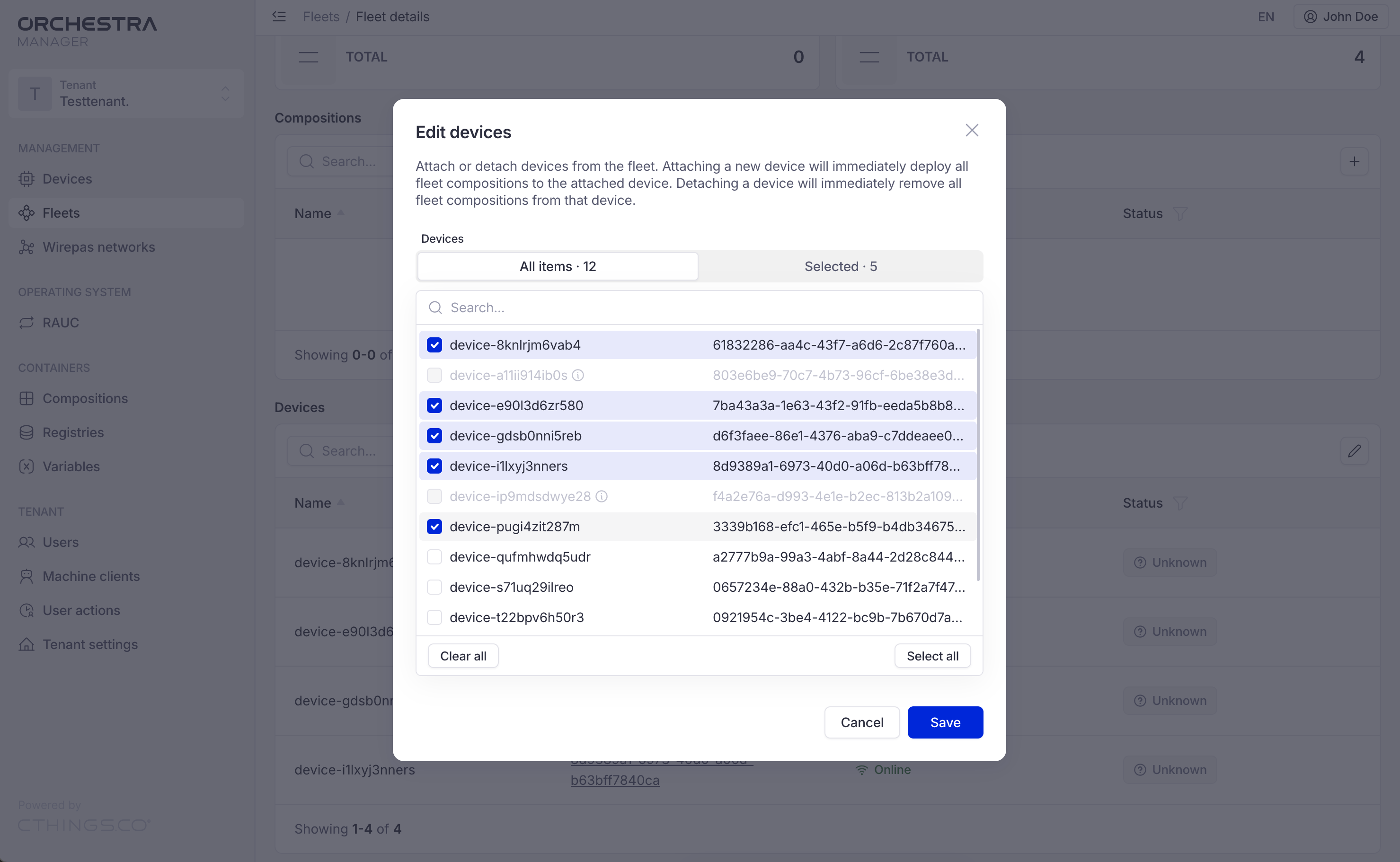
In this pop-up, you can make changes to the fleet’s devices. When you have finished, press the Save button.
Warning
If you select devices and close the pop-up without saving, the fleet’s device list will not change, and you will not receive a notification that your devices were not added.
Important
Attaching a new device will start the deployment of all releases to the attached device. Detaching a device will start the removal of all releases from that device.