Compositions
This chapter describes how to use compositions within a fleet.
Adding the first composition
When you click the Compositions tab in the navigation bar, you will see an empty list of compositions and an Add first composition button.
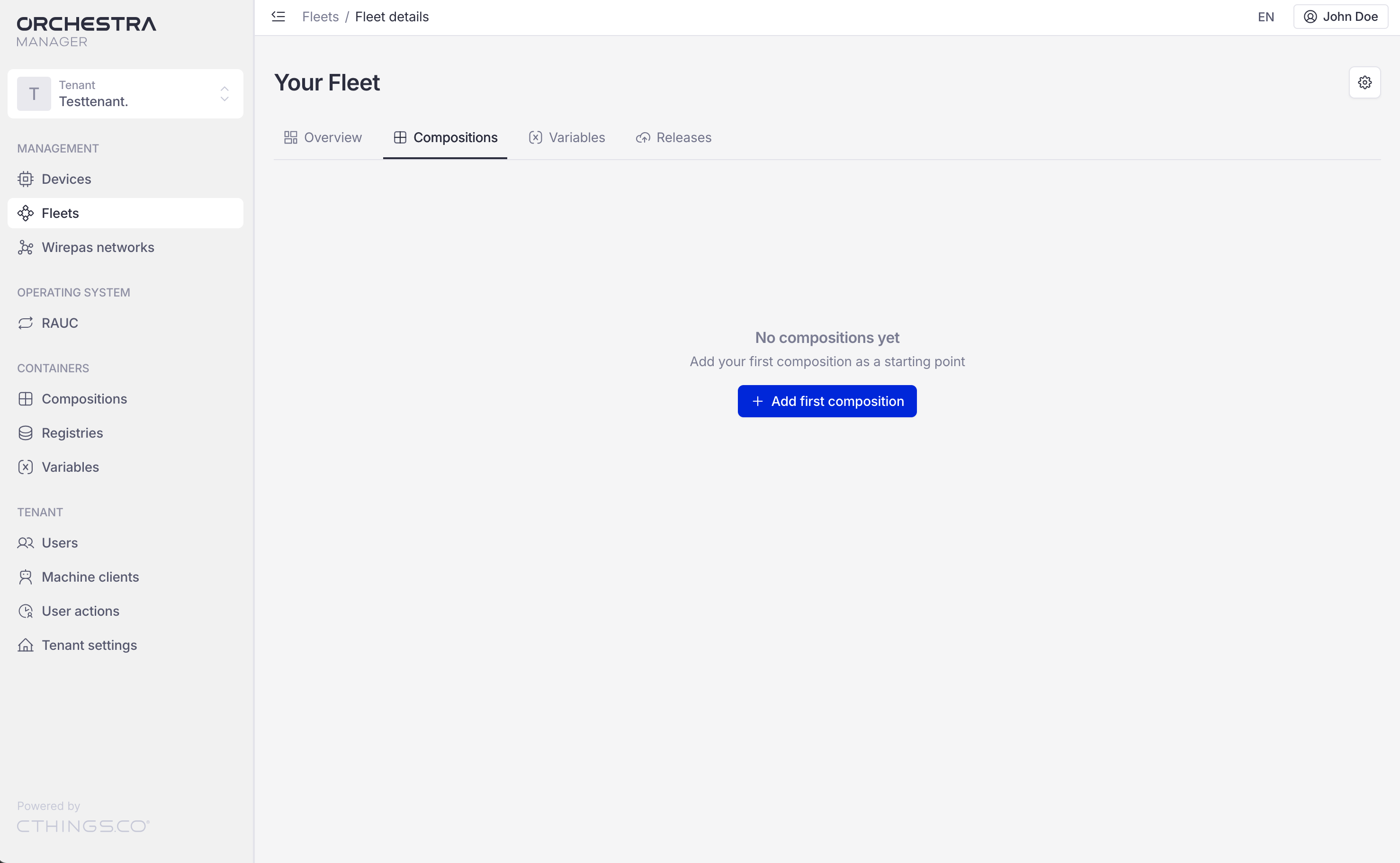
Press the Add first composition button and choose one of the existing compositions. If you don’t have any compositions yet, see REFERENCE TO THE COMPOSITION PAGE.
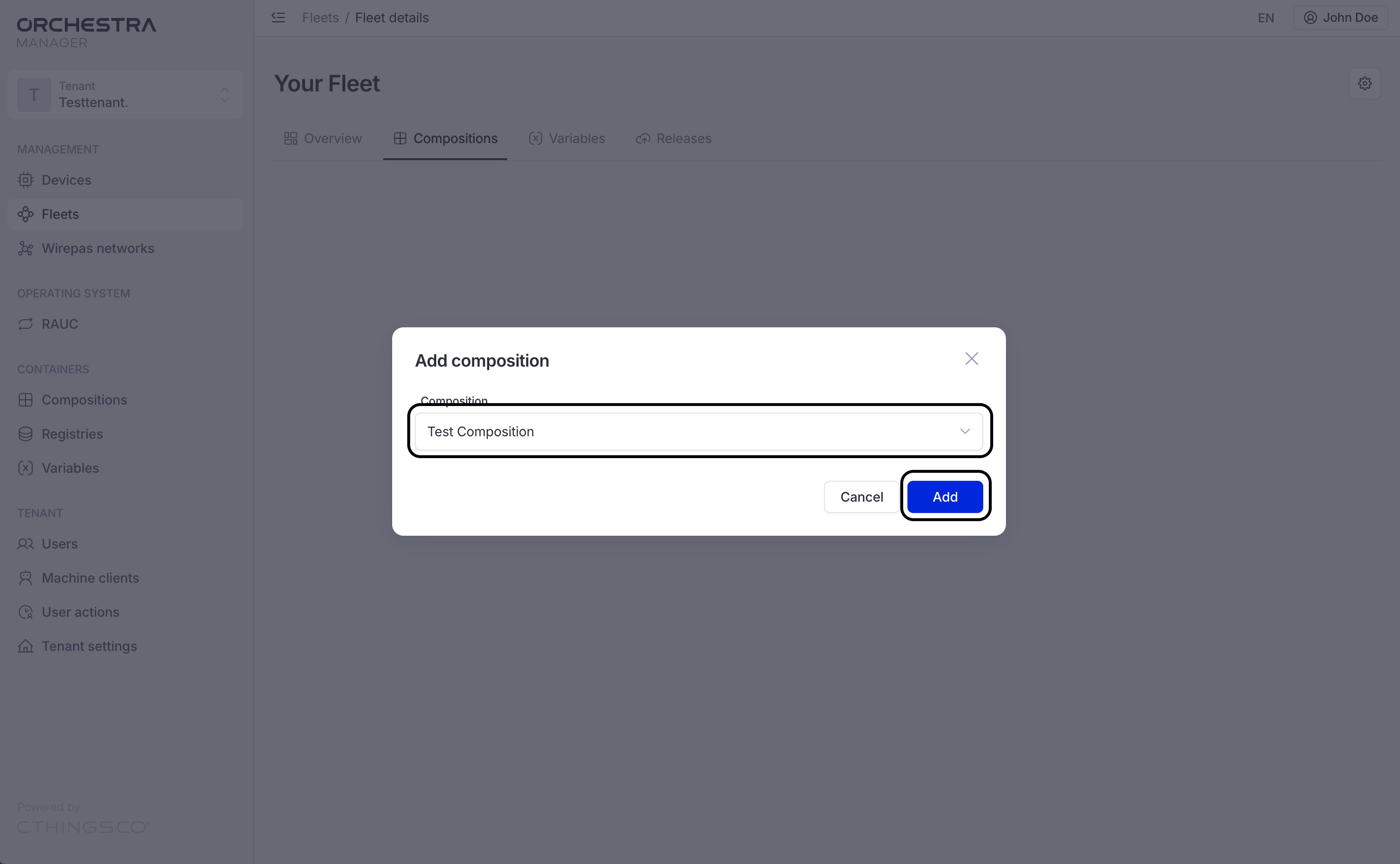
Adding a composition
Press the Add button and your composition will be added to your fleet.
Note
Adding the composition doesn’t automatically deploy the application(s) to the devices, see Releases for more details.
Adding more compositions
Your fleet now has its first composition, but a fleet can contain several. To add a new composition, click on the dropdown menu that shows the name of the composition you added earlier.
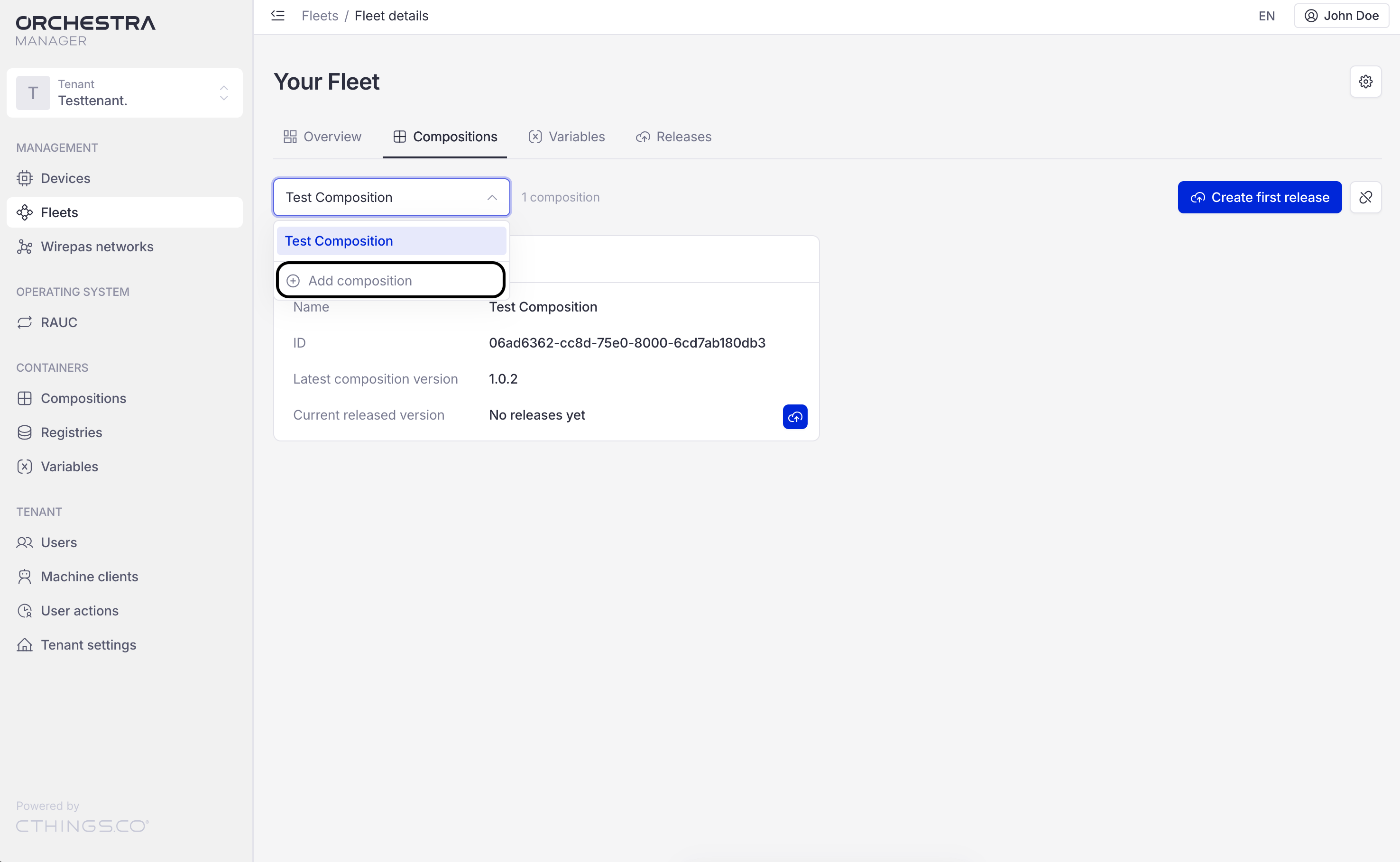
Press Add composition and choose the required composition. After you have added a new composition, you can use the dropdown menu to switch between compositions.
Detaching a composition
If a composition is no longer needed in your fleet, it can be detached from the fleet.
Note
You cannot detach a composition if its release has not been fully deployed.
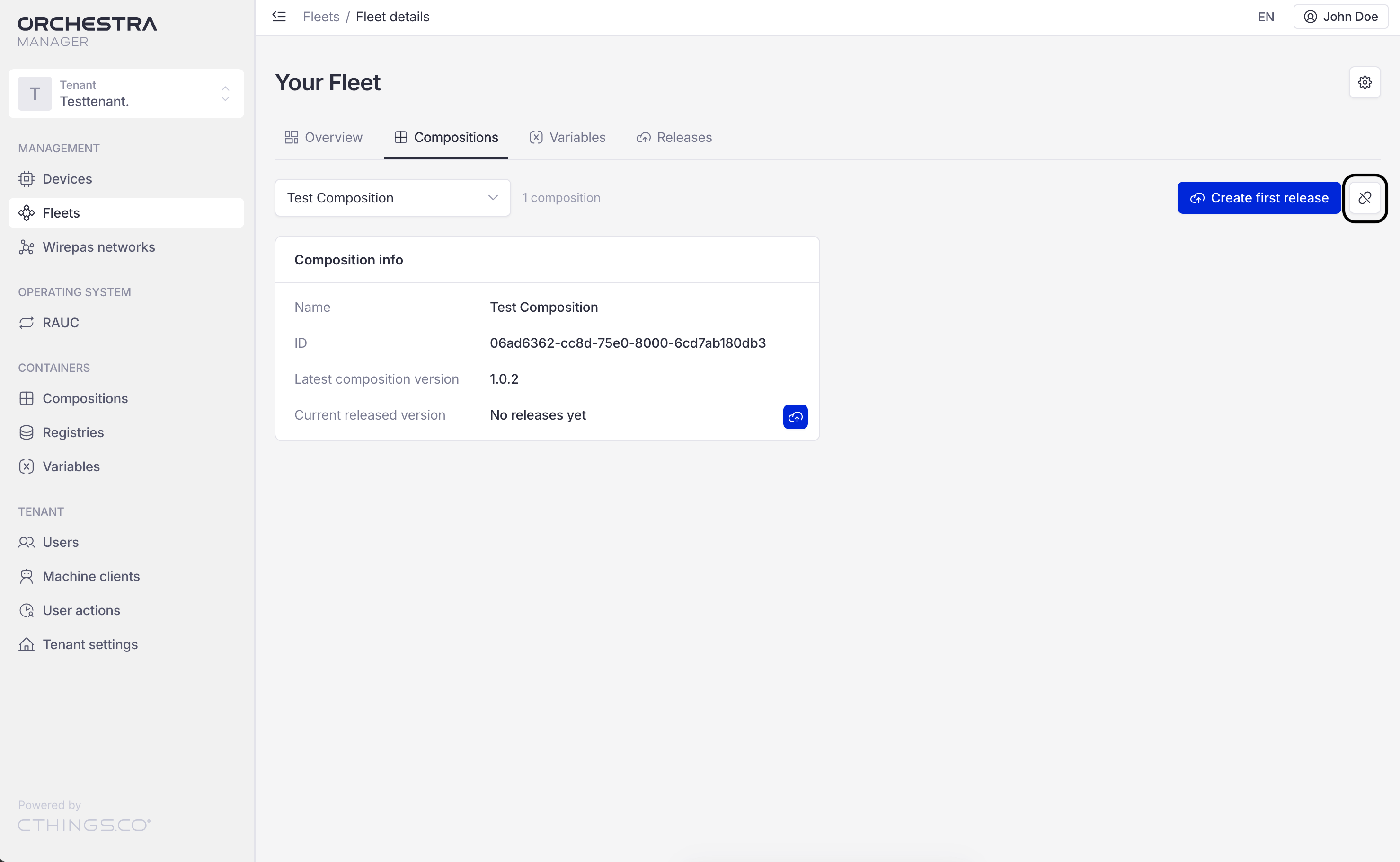
To detach a composition, press the Detach button shown below:
Important
Detaching a composition that was released removes all associated applications from the devices.
Deploying compositions
Deploying a composition is called a release. To learn how to create and manage releases, see Releases.