Variables
This chapter describes how to use variables within a fleet.
Variables in the fleet
Go to the Variables tab of your fleet. There you will see a list of variables. This list contains only Global and Fleet variables.
The list contains the previously created UPDATE variable.
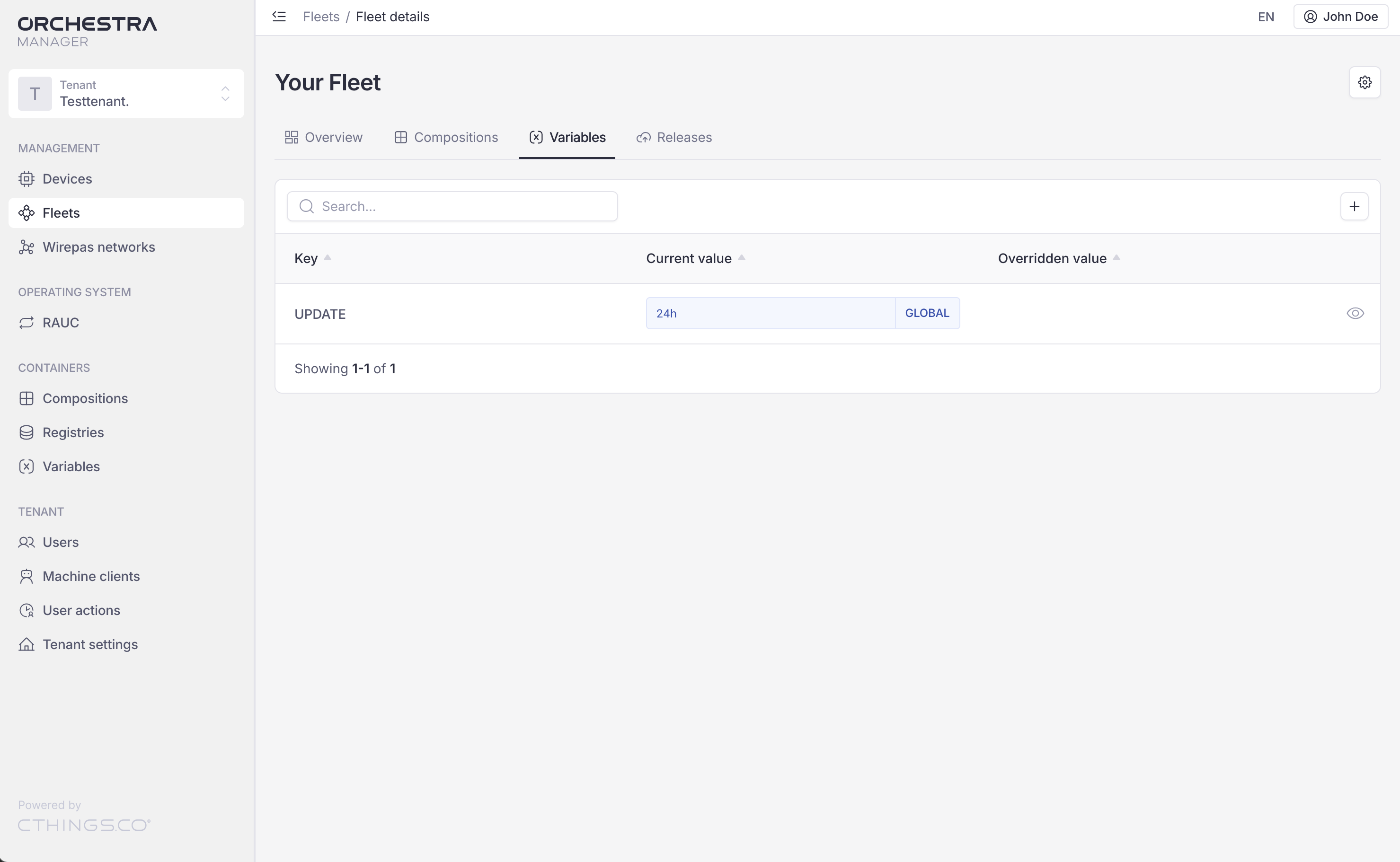
Variables in fleets can be managed in the same way as any other variable: you can change the name, value, value type and description. To learn how to do that, see REFERENCE TO VARIABLES.
Creating a variable
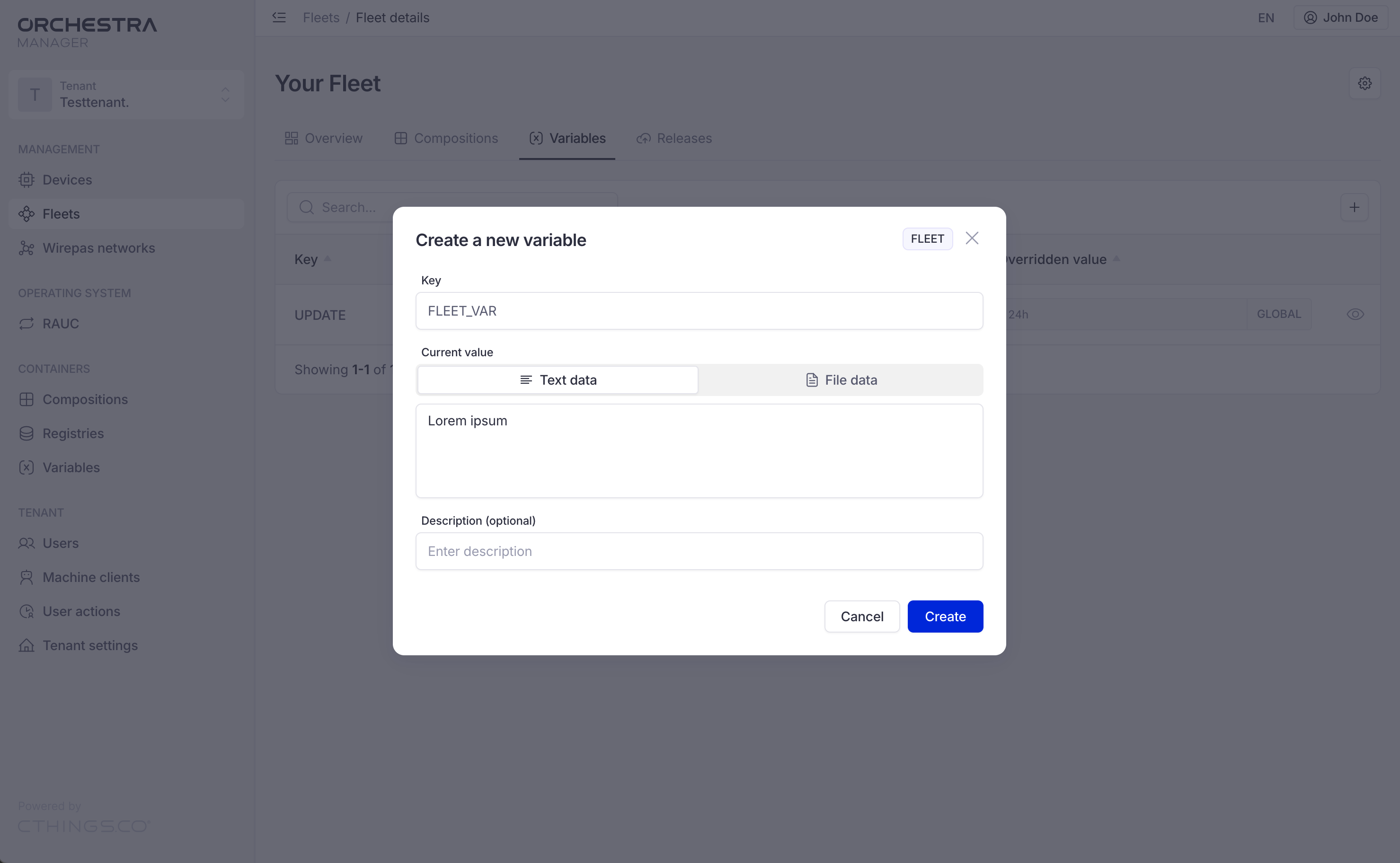
The process of creating a fleet variable is the same as creating a Global one (see REFERENCE TO THE VARIABLES SECTION: HOW TO CREATE A GLOBAL VARIABLE). Press the "+" button, provide a name, value, value type and description, then press Create.
Overriding an existing variable
As mentioned in the Variables chapter <—– REFERENCE, you can override variables. To do so, create a variable with the same name as the variable you want to override. The following figure shows how to override the UPDATE variable:
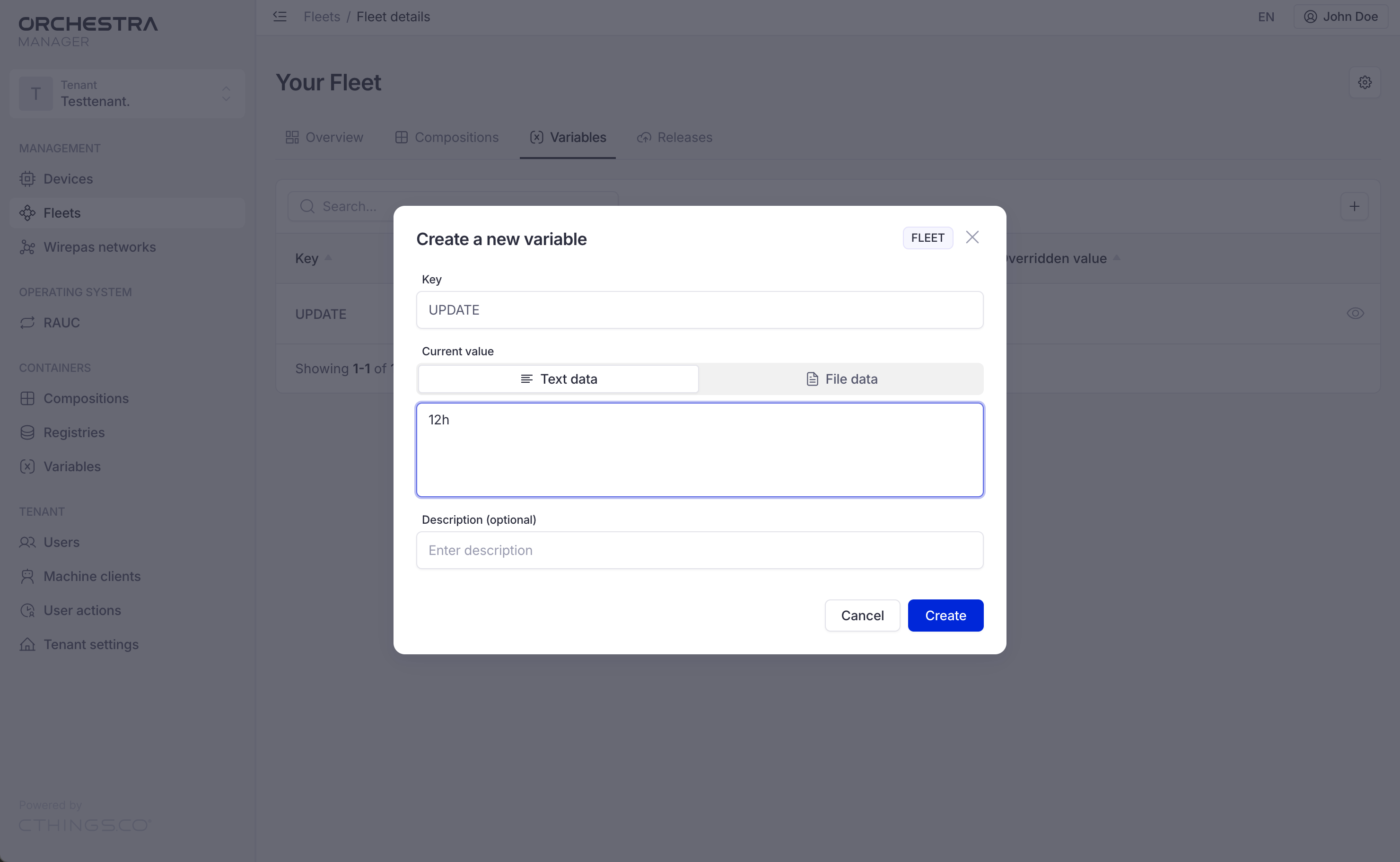
In this example, the UPDATE variable is created with the value 12h. As shown earlier, this variable already exists, so after Create is pressed, the Global variable will be overridden for this fleet.
Important
Each time you deploy a release, a snapshot of your variables is saved with it: a copy of their values at the moment of release. The release keeps using these saved values, so if you later change a variable in Orchestra Manager, the change will not reach your devices until you redeploy the release.
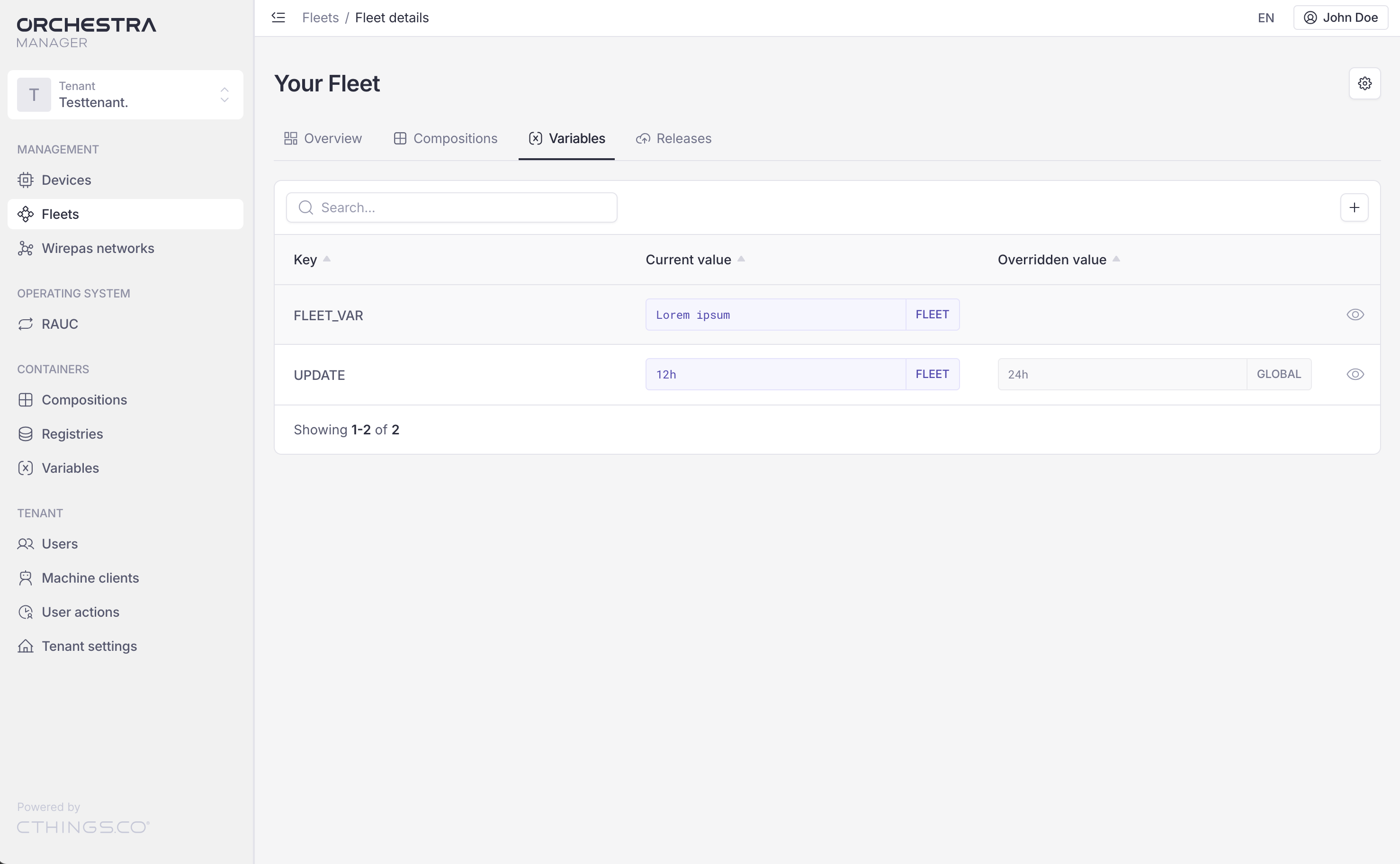
Newly created and overridden variables