Registries
Container registries are the places devices pull Docker images from, such as Docker Hub or a private company registry. When a composition’s Docker Compose file refers to an image in a private registry, Orchestra uses the login details saved on the Registries page to pull it, so your devices can run images that aren’t public. This guide walks you through adding, editing and deleting registries.
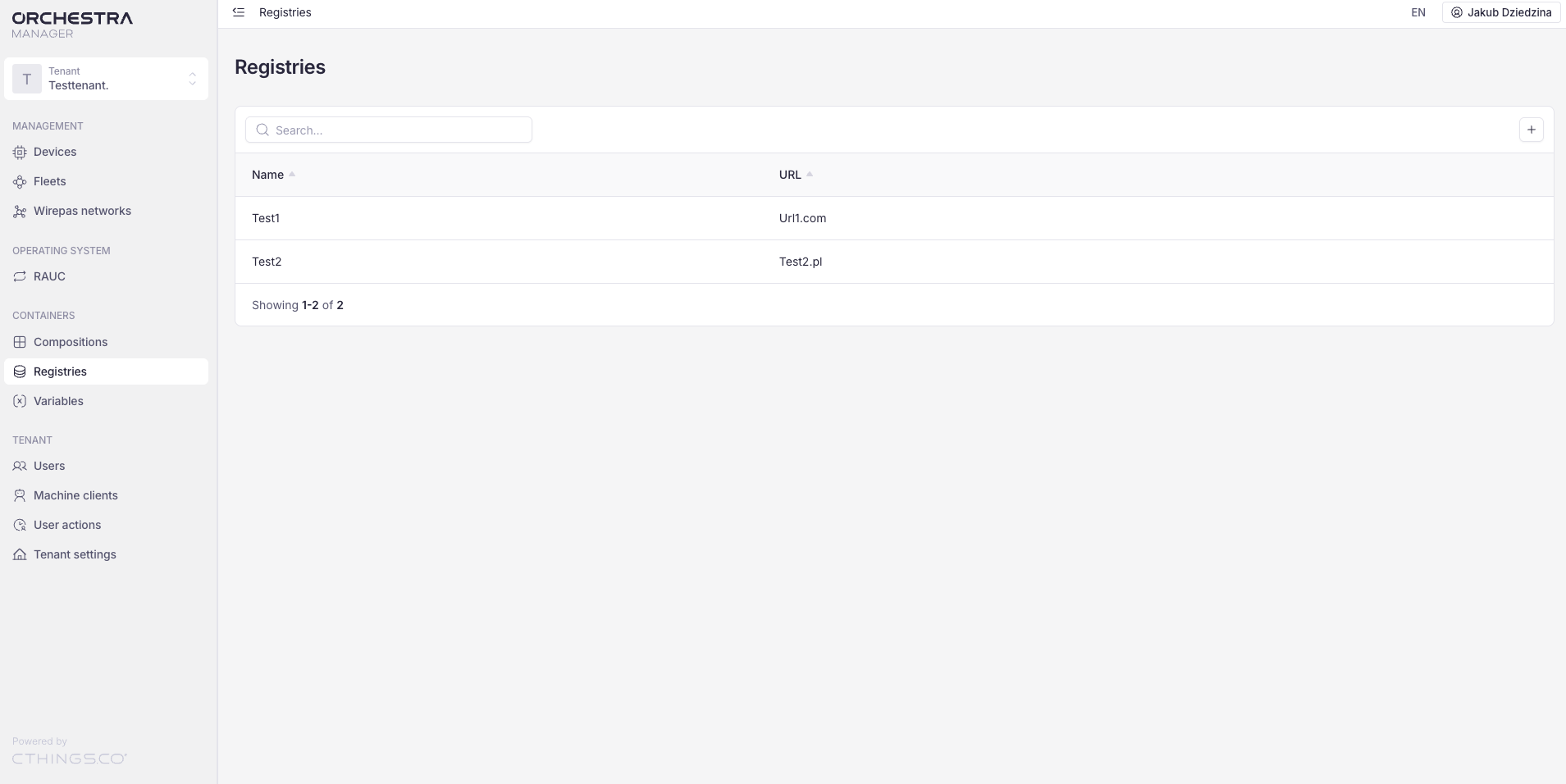
On the Registries page you can:
See the registries of the tenant, with their names and URLs
Search for a registry by name
Add, edit or delete a registry
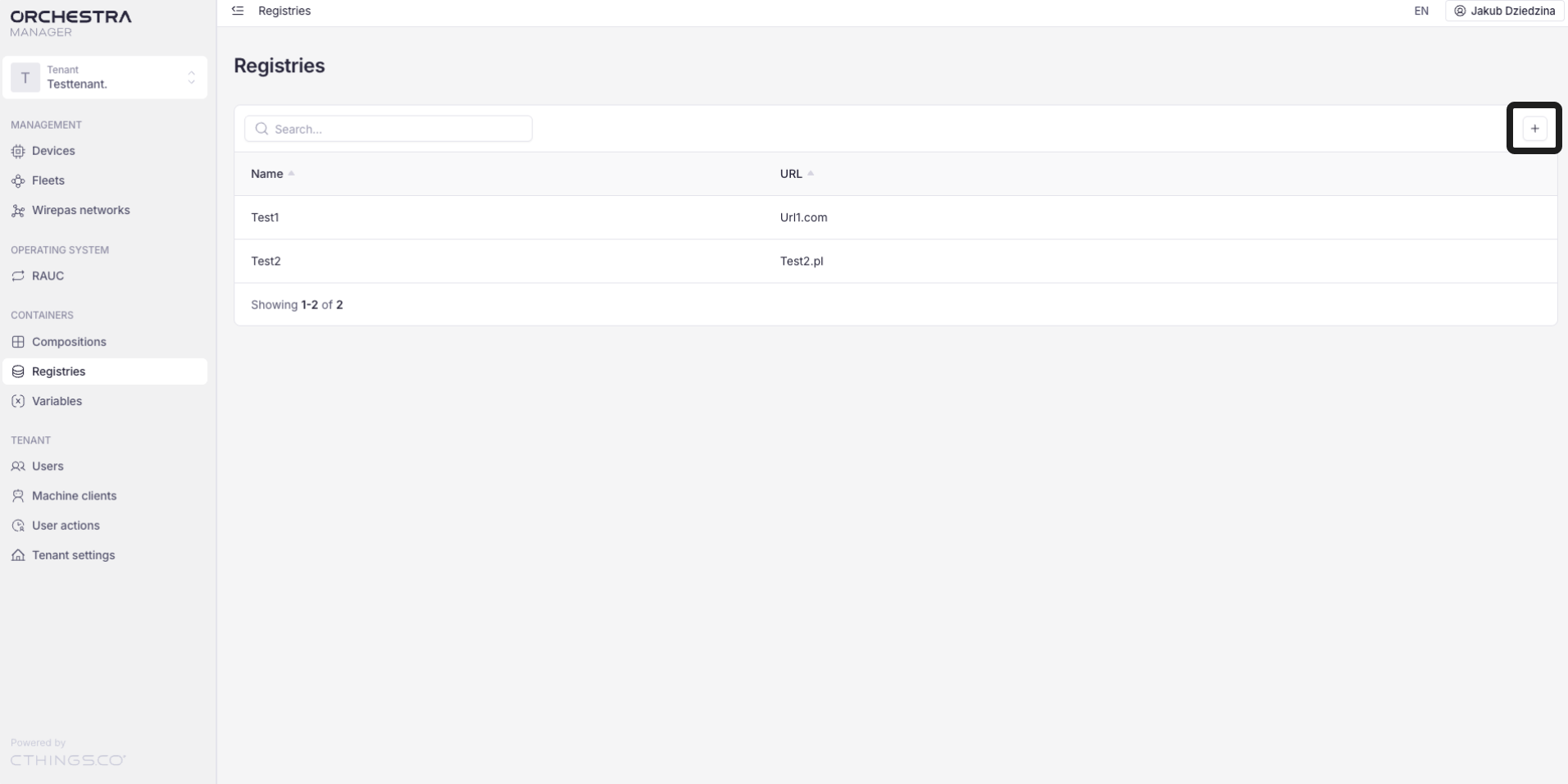
Add a registry
Click the + button in the top right corner of the table
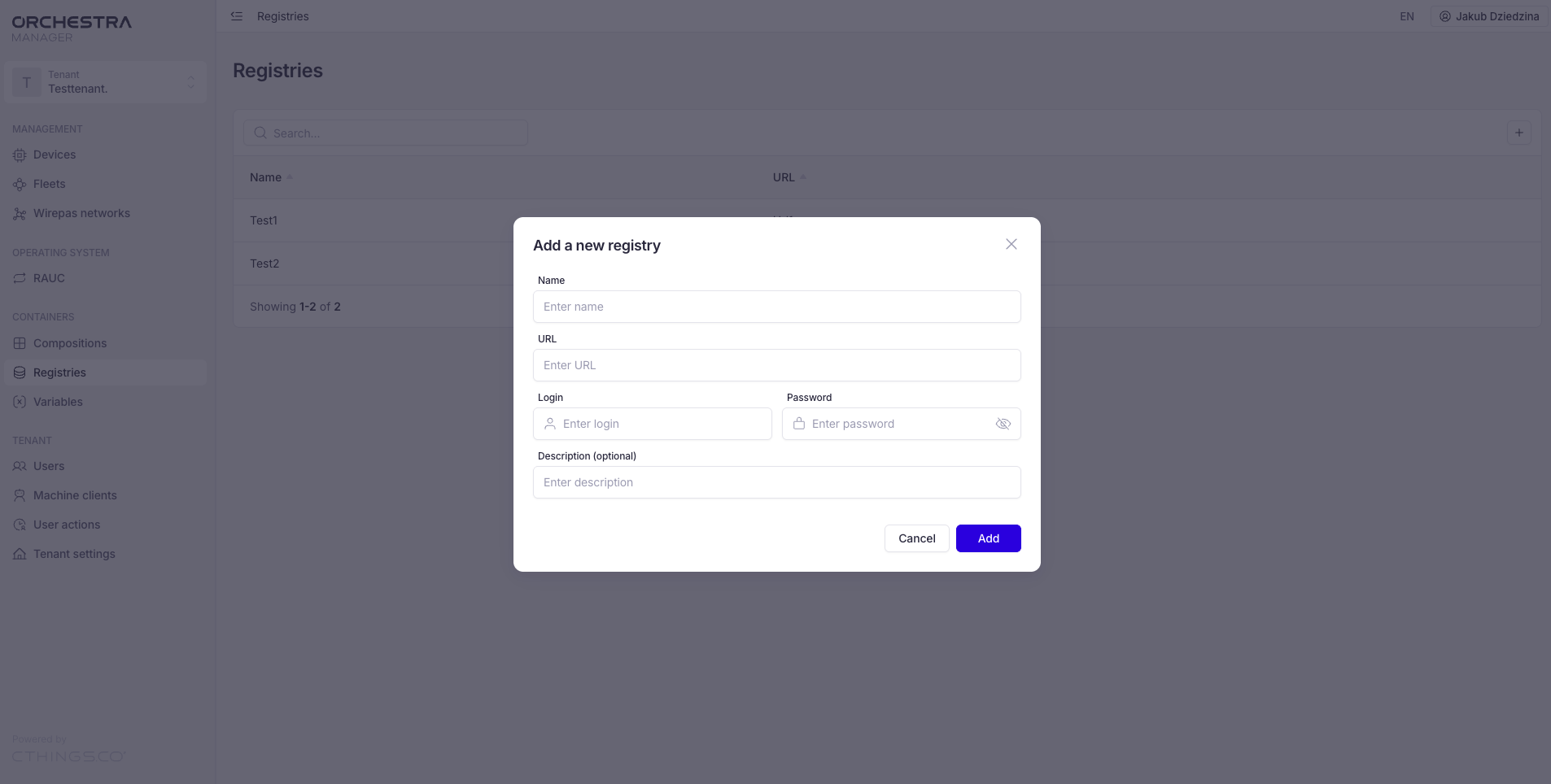
In the Add a new registry window, fill in the fields:
Name: your own label for the registry, e.g. Company Docker Hub
URL: the registry address
Login and Password: the credentials to access the registry. Click the eye icon to show the password
Description (optional): a note about the registry
Click Add. To close the window without saving, click Cancel
Edit a registry
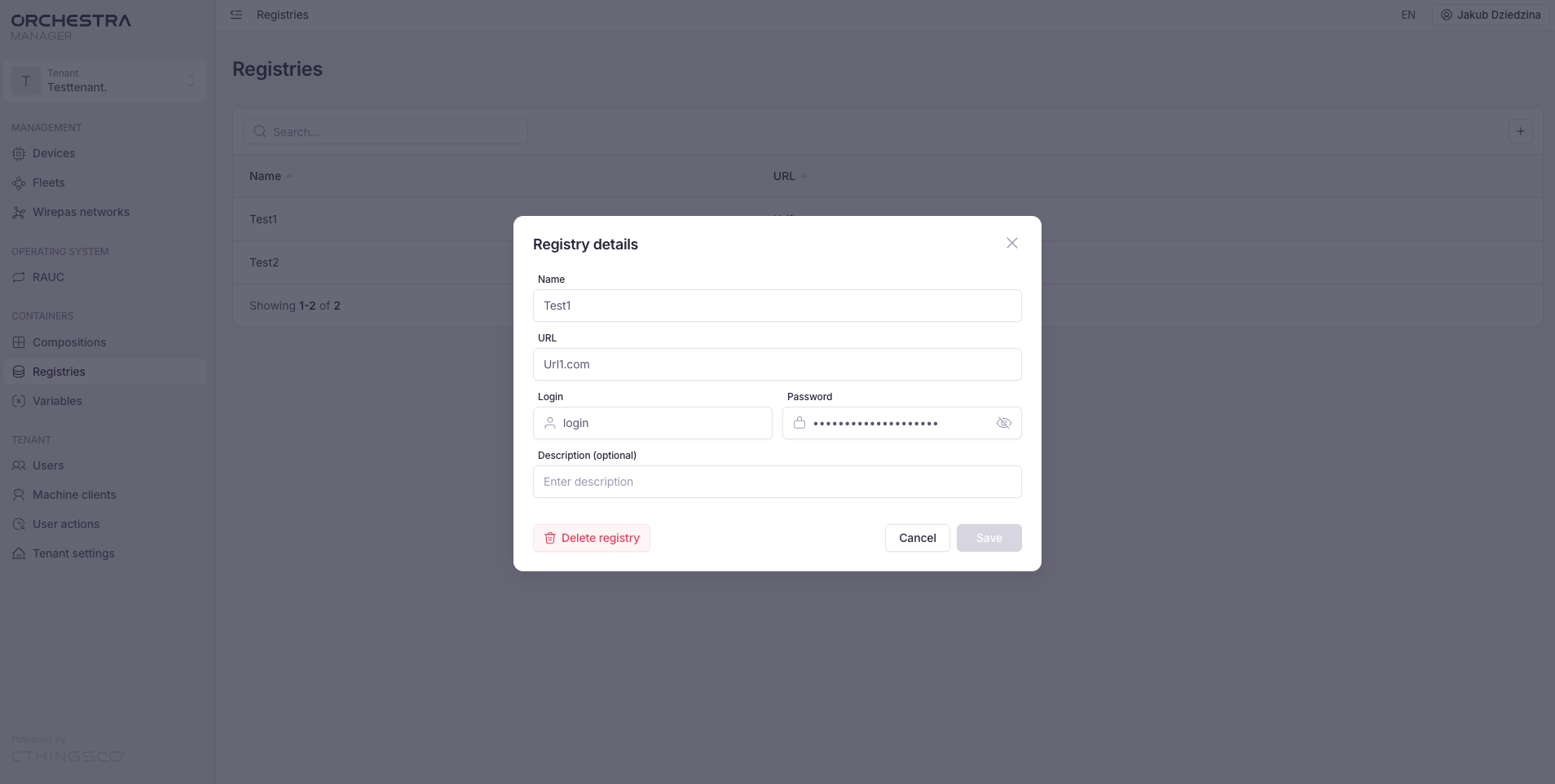
On the Registries page, click the registry
In the Registry details window, change its details
Click Save
Delete a registry
Warning
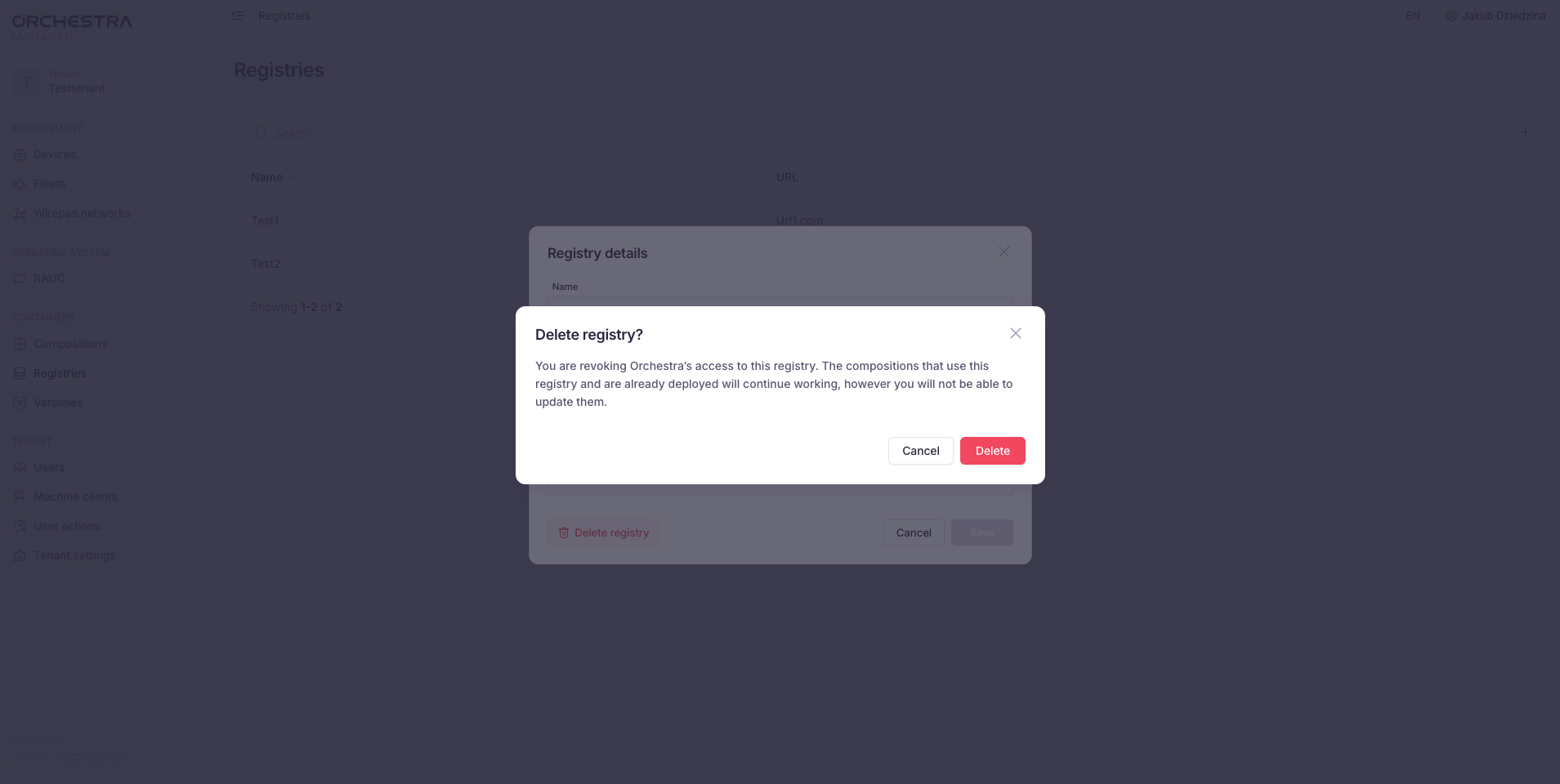
Deleting a registry revokes Orchestra’s access to it. Compositions that use the registry and are already deployed keep working, but you can’t update them.
On the Registries page, click on one of the available registries
In the Registry details window, click the red Delete registry button
Confirm by clicking the red Delete button